
One of the most powerful ways to be more productive, save time, and earn money with AI is through AI automation. If you’ve ever spent hours on repetitive tasks and thought, “There has to be a better way to do this,” you’re not alone.
Maybe you’re copying information from one app to another, sending the same follow-up email over and over, or manually updating a spreadsheet that really should just update itself. It’s exhausting. And honestly? It’s a waste of your time.
You may also read: How to Become an AI Automation Specialist in 2026 (Even If You’re Starting from Zero)
Here’s the thing: that kind of repetitive, copy-paste work doesn’t have to be your problem anymore. There’s a tool called Make.com — and once you see what it can do, you’ll wonder how you ever worked without it.
By the end of this guide, you’ll understand exactly what Make.com is, how it works, and how you can start building your first automation today — even if you’ve never written a line of code in your life.
Let’s break it down.
So, What Exactly Is Make.com?
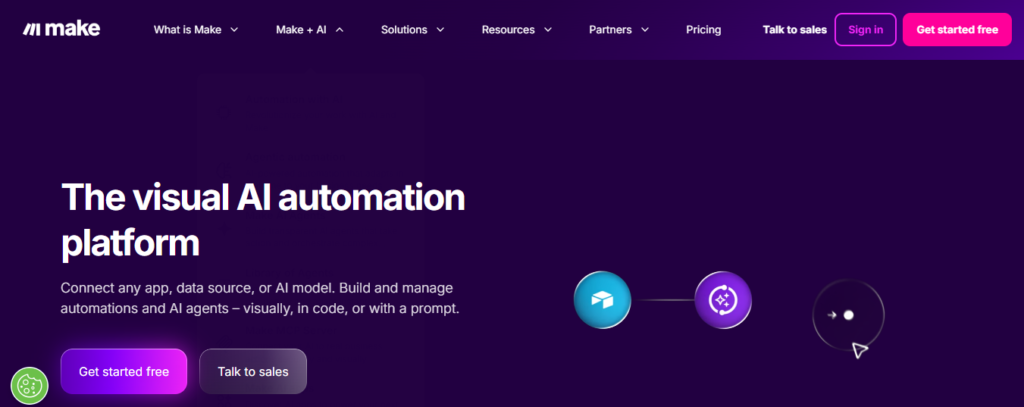
Make.com is a visual, no-code automation platform. That sounds technical, so let me say it in plain English.
Think of it like a universal remote control for all your apps. You tell it: “When this happens in App A, do this in App B.” And Make.com handles the rest — automatically, around the clock, without you having to lift a finger.
You might have heard of Zapier — Make.com is in the same category, but with a visual drag-and-drop canvas that makes it easier to see exactly what your automation is doing at every step. (More on how the two compare later.)
Make.com was originally called Integromat, rebranded in 2022, and has grown into one of the most powerful automation tools out there. As of 2026, it connects with over 3,000 apps — think Google Workspace, Slack, HubSpot, Airtable, Shopify, Notion, and even AI tools like ChatGPT and Claude.
Why Would a Beginner Need This?
Great question. You might be thinking: “I’m not running a big business. Does this really apply to me?”
It absolutely does. Here’s why.
Whether you’re a freelancer, a content creator, a small business owner, or someone just starting to build something online — you’re probably doing a lot of the same small tasks over and over. Those tasks add up to hours every week.
Make.com lets you hand those tasks off to automation. For example:
- A new lead fills out your contact form → they automatically get added to your email list and receive a welcome message
- You publish a new blog post → a draft social media post is created automatically
- A new sale comes in → your spreadsheet updates itself and you get a Slack notification
None of that requires you to do anything manually. You set it up once, and it just runs.
And that’s exactly why automation is one of the most valuable digital skills you can build right now — it frees up your time for the work that actually needs you.
A Few Terms You’ll Want to Know
Before you jump in, there are a handful of words Make.com uses that you’ll see everywhere. Don’t let them trip you up — they’re simpler than they sound.
Scenario — This is what Make.com calls an automated workflow. It’s basically a flowchart of connected apps and actions.
Module — A single step inside a scenario. For example, “check for new emails” or “create a row in Google Sheets.”
Trigger — The event that starts everything. It’s the “when this happens” part of your automation.
Action — What happens after the trigger fires. It’s the “do this” part.
Operation — Every time a module runs, it uses one operation. This is how Make.com measures usage for billing purposes.
Router — A way to split your scenario into different branches based on conditions. Think of it as a fork in the road.
Webhook — A URL that receives real-time signals from other apps. It lets your automations fire instantly instead of on a schedule.
You don’t need to memorize all of these right now. Just keep them in the back of your mind as you explore — you’ll pick them up naturally as you go.
How to Get Started (Step by Step)
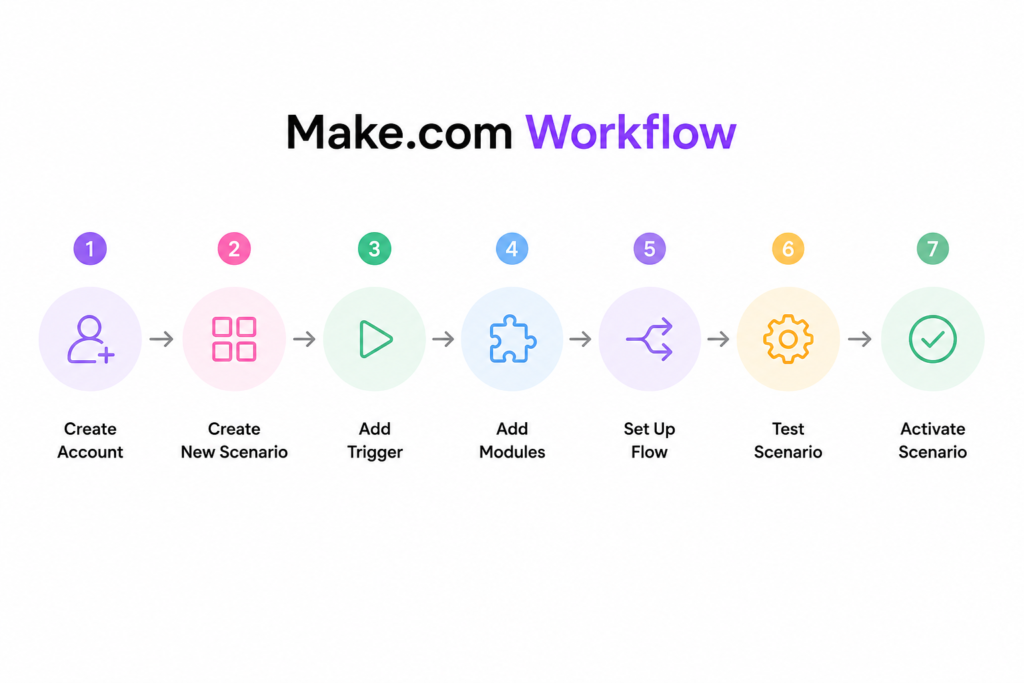
Getting your account set up takes less than five minutes. Here’s what to do:
Step 1 — Create Your Free Account
Head to make.com and sign up — no credit card required. The free plan gives you everything you need to learn the platform and build your first few automations. Once you’re in, you’ll land on your dashboard. Think of this as your control room — it’s where all your workflows (called scenarios) live and run.
Step 2 — Create a New Scenario
A scenario is just Make.com’s word for an automation. Click “Create a New Scenario” to open the visual canvas — a dark workspace where you’ll connect your apps and build your workflow step by step. It might look a little unfamiliar at first, but stick with me. It gets intuitive fast.
Step 3 — Choose Your Trigger
Every automation starts with a trigger — the event that tells Make.com when to do something. A new form submission, a new email in your inbox, a new row added to a spreadsheet — any of these can kick things off. Think of the trigger as the “when this happens” part of your automation.
Step 4 — Add Your Modules
Modules are the actions that follow your trigger. Each one does a specific job — sending a message, creating a document, updating a spreadsheet, posting to social media. You can add as many modules as you need, chaining them together to build more advanced workflows as you get comfortable.
Step 5 — Set Up the Flow
Now you’ll connect the dots. Map the data from one step to the next — for example, pulling a name from a form submission and dropping it into a Slack notification. You can also add filters, conditions, or routers here if you want your automation to behave differently depending on the situation.
Step 6 — Test Before You Go Live
This step is important — don’t skip it. Click “Run once” to test your scenario manually before activating it. Make.com will walk through each module and show you exactly what happened. Green checkmarks mean everything worked. If something’s off, you’ll see exactly where and why, so you can fix it before it runs on real data.
Step 7 — Activate Your Scenario
Once you’re happy with how it’s running, flip the switch to activate. From this point on, Make.com monitors your trigger automatically and runs the workflow whenever the event occurs — no action needed from you. That’s the whole point. You set it up once, and it just runs.
Practical Example Make.com Automation
Let’s build something real together. We’re going to create a simple automation that sends you a Slack notification every time a new row is added to a Google Sheet. It’s a perfect starter project because it only has two steps but shows you exactly how Make.com thinks.
Step 1 — Set Up Your Trigger
On your Make.com dashboard, click Create a New Scenario. Next, click the empty circle on the canvas and search for Google Sheets. Select the trigger module Watch New Rows.
Make.com will then ask you to connect your Google account. Simply follow the login prompts and grant the required permissions. Once connected, choose the spreadsheet and the specific sheet you want Make.com to monitor for new rows.
Step 2 — Add your action.
Click the “+” button next to your trigger module and search for Slack. Choose “Send a Message.” Connect your Slack workspace, pick a channel, and write your message. Here’s the cool part: you can pull in real data from your Google Sheet — like a name or email address — directly into the message text.
Step 3 — Test it.
Click “Run once” at the bottom of the screen. Make.com will run the scenario once and show you exactly what happened at each step. Green checkmarks mean it worked. If something went wrong, clicking the module gives you detailed info on why.
Step 4 — Turn it on.
Once everything looks good, set your scheduling interval and flip the scenario to active. That’s it. It’ll now run automatically in the background.
I won’t lie — the first time I saw a workflow run on its own without me doing anything, I felt ridiculously satisfied. You will too.
What Can You Actually Automate?
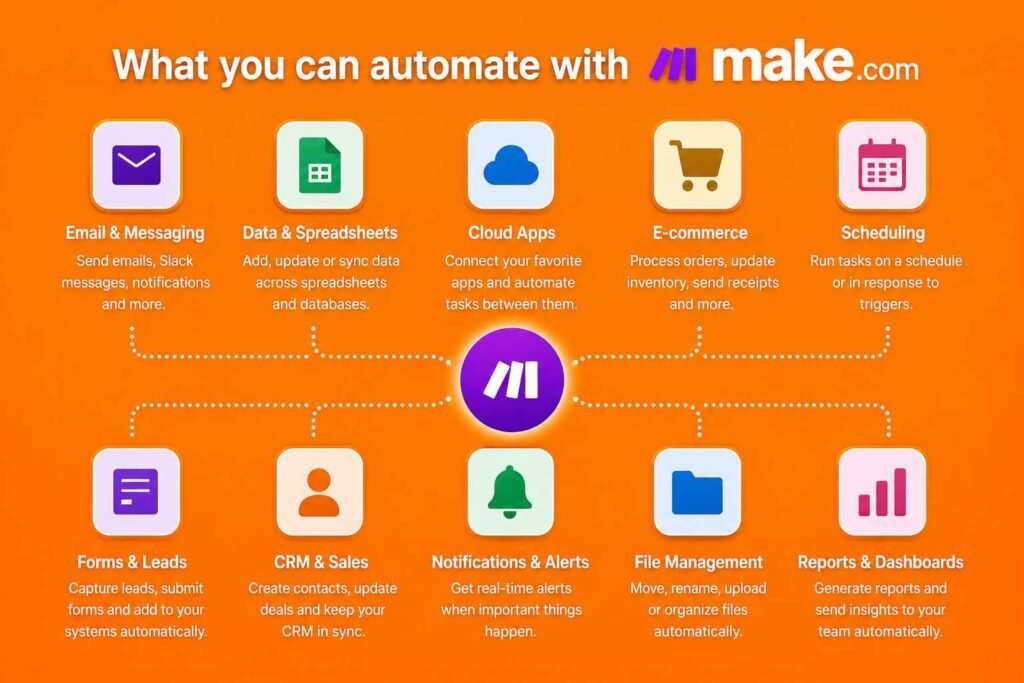
Once you get comfortable with the basics, the possibilities open up fast. Here are a few popular ways people use Make.com:
Here’s the corrected version rewritten in the Future Work Navigator voice — conversational, beginner-friendly, and empathy-first, with the emoji headers replaced by the brand’s clean formatting style:
Email and Messaging
If you’ve ever manually sent the same follow-up email or copy-pasted a notification into Slack, this one will feel like a relief. Make.com can handle your communication automatically — sending emails, Slack messages, WhatsApp notifications, and alerts the moment a trigger fires. Your team stays informed without you having to relay every update yourself.
Data and Spreadsheets
Stop copying and pasting data between tools. Seriously — that’s exactly the kind of work automation was made for. Make.com can automatically add, update, and sync information across Google Sheets, Excel, Airtable, and other systems, so your data stays accurate without the manual effort.
Cloud Apps
Most of us are already using a handful of cloud tools every day — Gmail, Google Drive, Notion, and more. Make.com connects them so they actually work together. Instead of switching between tabs and moving information by hand, your apps talk to each other automatically.
E-commerce
Running an online store means a lot of repetitive behind-the-scenes work. Make.com can handle order processing, inventory updates, customer notifications, and sales tracking automatically — so you can spend less time managing routine tasks and more time growing your business.
Scheduling
Some tasks just need to happen at the right time, every time. Make.com lets you automate recurring workflows based on specific times, dates, or triggers — whether that’s a weekly report, a daily backup, or a reminder that goes out every Monday morning.
Forms and Leads
Every lead matters, especially when you’re just starting out. When someone fills out your form, Make.com can instantly send their information to your CRM, email list, spreadsheet, or project management tool — so no one falls through the cracks while you’re busy doing everything else.
CRM and Sales
Keeping your sales pipeline organized takes constant attention — unless you automate it. Make.com can create new contacts, update deals, assign leads, and log customer interactions automatically, so your CRM stays current without you having to update it manually after every interaction.
Notifications and Alerts
You can’t be everywhere at once. Make.com makes sure you still know what’s happening — sending you instant alerts when a new lead comes in, a sale goes through, a support request arrives, or anything else that matters to your business.
File Management
Moving, renaming, and organizing files sounds simple until it’s happening dozens of times a week. Make.com can automate all of that — keeping your files sorted, stored, and where they need to be across your cloud platforms, without you touching a single one.
Reports and Dashboards
Instead of spending hours pulling numbers together at the end of the week, Make.com can do it for you. Automatically generate reports, update dashboards, and share performance metrics with your team — so you always have a clear picture of what’s working without the manual compile time.
If you find yourself building these kinds of workflows for other people — not just yourself — you might be sitting on a business idea. I’ve written a full guide on how to start an AI automation agency, including what to charge and how to land your first client.
What Does It Cost?
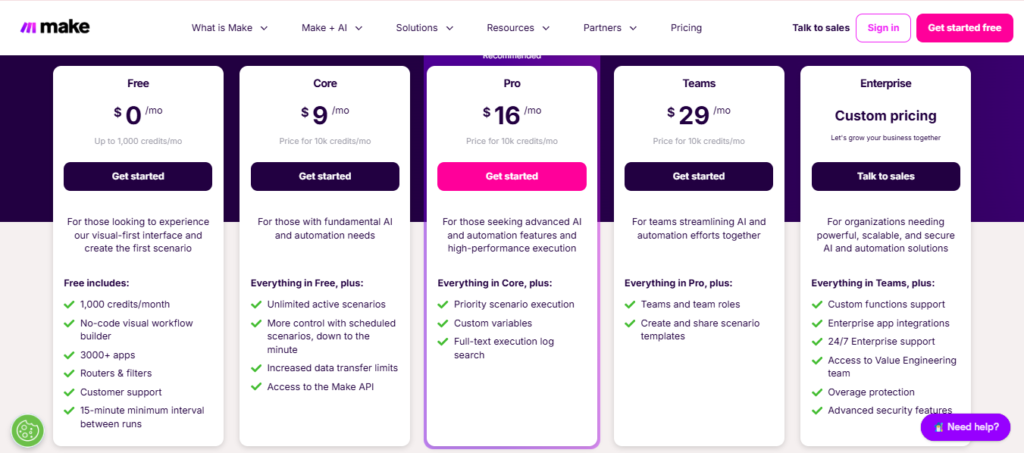
Make.com uses an operation-based pricing model — you’re charged based on how many times your modules run each month, not by the number of automations you build.
Here’s a simplified breakdown of the current plans:
The Free plan gives you 1,000 operations per month with up to 2 active scenarios. It’s great for learning and testing.
The Core plan (around $10–11/month on annual billing) bumps you to 10,000 operations with unlimited active scenarios. This is where most solo users and freelancers land once they’re ready to get serious.
From there, the Pro and Teams plans scale up for heavier usage and growing teams.
One thing to watch out for as a beginner: if your trigger checks for new data on a schedule (called “polling”), it uses an operation every time it checks — even if nothing new came in. To save operations, use webhook-based triggers whenever possible. They only fire when something actually happens, which is much more efficient.
| Feature | Free | Core | Pro | Teams | Enterprise |
|---|---|---|---|---|---|
| Visual Workflow Builder | ✅ | ✅ | ✅ | ✅ | ✅ |
| 3,000+ App Integrations | ✅ | ✅ | ✅ | ✅ | ✅ |
| Unlimited Active Scenarios | ❌ | ✅ | ✅ | ✅ | ✅ |
| Make API Access | ❌ | ✅ | ✅ | ✅ | ✅ |
| Priority Execution | ❌ | ❌ | ✅ | ✅ | ✅ |
| Custom Variables | ❌ | ❌ | ✅ | ✅ | ✅ |
| Team Collaboration | ❌ | ❌ | ❌ | ✅ | ✅ |
| Scenario Templates Sharing | ❌ | ❌ | ❌ | ✅ | ✅ |
| Enterprise Security | ❌ | ❌ | ❌ | ❌ | ✅ |
| 24/7 Enterprise Support | ❌ | ❌ | ❌ | ❌ | ✅ |
Prices shown are approximate annual billing rates. Check make.com for current pricing.
Make.com vs. Zapier — Which One Is Right for You?
If you’ve been researching automation tools, you’ve probably come across Zapier too. Let’s be honest about the comparison.
Zapier is easier to set up for complete beginners. Its interface is more linear and straightforward, and it connects to over 7,000 apps. If you need a simple, two-step automation running in ten minutes, Zapier is hard to beat.
Make.com has a slightly steeper learning curve but gives you a lot more power once you’re past it. The visual canvas makes complex, multi-branch automations easier to understand and manage. It also tends to cost 3 to 5 times less per operation than Zapier — which matters a lot once your automations are running regularly.
My honest take? If you’re just starting out and want something dead simple, Zapier is fine. But if you’re willing to spend an hour learning the interface, Make.com will give you more flexibility, more AI integrations, and a much better price as you scale.
| Feature | Make.com | Zapier |
|---|---|---|
| 🎨 Workflow Builder | ✅ Visual canvas builder | ✅ Linear step-by-step builder |
| 🔀 Multi-Branch Logic | ✅ Routers & advanced filters | ⚠️ Paths (higher-tier plans only) |
| 🚀 Ease of Use | Moderate learning curve | Extremely beginner-friendly |
| 💰 Cost Efficiency | ✅ 3–5× cheaper per operation | ❌ Higher cost at scale |
| 🔌 App Integrations | 3,000+ integrations | 7,000+ integrations |
| 🤖 AI Capabilities | ✅ Native AI modules | ✅ AI-powered automation |
| 🎁 Free Plan | 1,000 operations/month | 100 tasks/month |
| ⚙️ Complex Workflows | ⭐ Excellent for advanced automations | Limited without custom code |
| 📊 Workflow Visualization | Full workflow map | Simple task sequence |
| 🏢 Best For | Power users, agencies, businesses | Beginners, solo entrepreneurs |
| 📈 Scalability | Excellent for large automations | Costs increase quickly as usage grows |
A Few Tips Before You Dive In
Start with templates. Don’t build from scratch until you’ve spent some time exploring what’s already been built for you. Templates are the fastest way to learn how Make.com thinks.
Test before going live. Always use the “Run once” button before activating a scenario. Testing on real, live data without checking first is how things go wrong.
Name your modules clearly. When your scenario has more than four or five steps, vague names like “Module 3” become a headache. Right-click any module and rename it something descriptive. You’ll thank yourself later.
Webhooks over polling. Whenever the app you’re connecting to supports webhooks (instant triggers), use them. They’re faster and use far fewer operations.
Build one automation at a time. It’s tempting to try to automate everything at once. Resist that urge. Pick one repetitive task, automate it well, and move on from there.
Frequently Asked Questions
Do I need to know how to code to use Make.com?
No. Make.com is a no-code platform designed for non-technical users. The visual drag-and-drop interface lets you build powerful automations without writing any code. That said, technical users can optionally add custom JavaScript functions for advanced data transformations.
What’s the difference between an operation and a task?
An “operation” in Make.com is every time a single module executes. A “task” in Zapier is roughly equivalent to one full zap run. Because Make.com counts each individual module step, a 4-module scenario uses 4 operations per run, not 1. This is why Make is cheaper on a per-operation basis — but the counts aren’t directly comparable.
Is Make.com safe to connect to my business apps?
Yes. Make.com uses industry-standard OAuth 2.0 authentication for app connections, meaning it never stores your passwords. The platform is SOC 2 Type II certified and GDPR compliant, making it appropriate for business use. Always review which permissions you grant when connecting apps.
What happens when I run out of operations?
Your active scenarios will pause automatically. Make.com sends email warnings at 80% and 100% of your usage. You can then upgrade your plan, purchase an operations add-on pack, or wait until your billing cycle resets. Unlike some platforms, Make.com does not charge surprise overage fees.
Can I use Make.com with AI tools like ChatGPT?
Absolutely. As of 2026, Make.com has native modules for OpenAI (GPT-4, DALL-E), Anthropic’s Claude, and Google’s Gemini. You can build AI content pipelines, automated research systems, intelligent email responders, and chatbot integrations — all without writing code.
Can I migrate from Zapier to Make.com?
Yes, though there’s no one-click migration tool. You’ll need to rebuild your Zaps as Make.com scenarios manually. The good news: most popular Zapier integrations are also available on Make.com, and the lower price point usually makes the switch worthwhile for high-volume users.
You’re More Ready Than You Think
If this felt like a lot to take in — that’s completely normal. I remember feeling the same way the first time I opened a workflow builder. Everything looks unfamiliar until suddenly it doesn’t.
Here’s what I’d suggest: don’t overthink it. Go sign up for the free account, browse a few templates, and pick one small task from your week to automate. Just one.
Once you feel that first workflow running on its own in the background, saving you time without you doing anything — that’s when it clicks. And once it clicks, you won’t want to stop.
The future of work isn’t about doing more. It’s about working smarter. And tools like Make.com are exactly how you get there.