
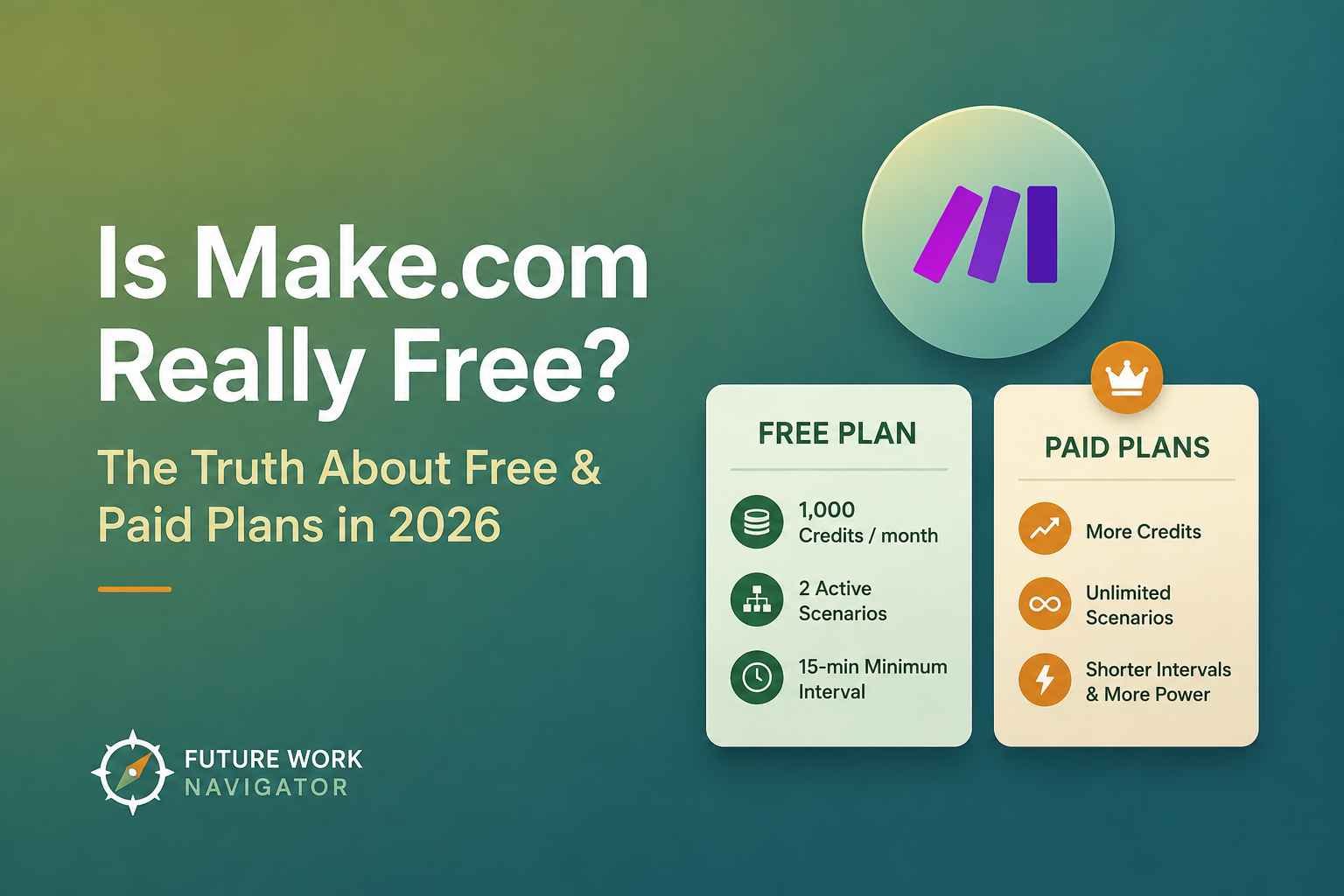
TL;DR: Yes — Make.com’s free plan is genuinely free forever, no credit card required. You get 1,000 credits a month and 2 active scenarios, which is enough to test real automations. But most people building anything for actual income (client work, a business, or a Make.com automation agency) outgrow it within a few weeks. Paid plans start around $9–$12/month depending on billing.
If you’ve been reading about Make.com and wondering whether you actually need to pull out your card before you can try it — I get it. I asked the exact same question before I ever built my first scenario.
Most tool websites bury the real answer under a pricing page full of sliders and asterisks. So let’s cut through that.
In this guide, I’ll walk you through exactly what the free plan includes, what it doesn’t, how the paid tiers actually work in 2026, and — most importantly — how to know when it’s time to upgrade instead of just guessing.
I was confused about the credit system myself when I first started, mostly because half the articles online still use outdated language. So we’ll clear that up too.
“The free plan isn’t a trial. It’s a real, permanent tier — the question isn’t whether it’s free, it’s whether it’s enough for what you’re trying to build.”
Is Make.com Actually Free, or Is It a Trial?
It’s a genuine free plan, not a time-limited trial. Make.com gives you 1,000 credits every month, forever, with no credit card required at signup. The catch is a 15-minute minimum interval between automated runs and a limit of 2 active scenarios at once — fine for testing, tight for real use.
That matters because a lot of “free” software online is really just a 14-day countdown wearing a free label. Make.com isn’t doing that. You could, in theory, run a small personal automation on the free plan indefinitely and never pay a cent.
What Do You Actually Get on the Free Plan?
You get full access to the visual scenario builder, all of Make’s 3,000+ app integrations, and 1,000 credits to spend each month. A credit is used every time a module in your scenario runs — so a simple 3-step automation that runs once uses about 3 credits.
The limits are the 2-scenario cap and the 15-minute scheduling floor, meaning your automations can’t fire instantly on every event; they check in batches.
What Are Make.com’s Paid Plans and What Do They Cost?
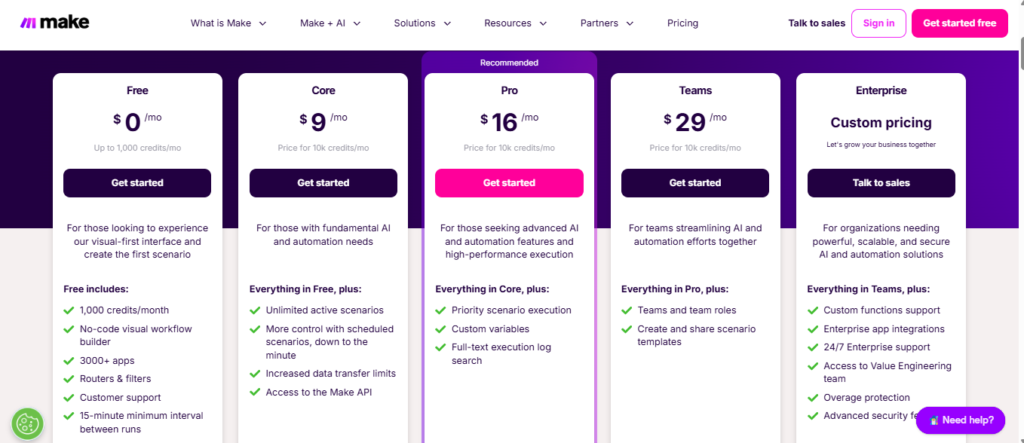
Make.com has four paid tiers above Free: Core, Pro, Teams, and Enterprise. Core starts around $9–$12/month for 10,000 credits and removes the scenario cap. Pro adds priority execution and deeper log search.
Teams adds collaboration features for multiple builders. Enterprise is custom-quoted for large-scale usage.
| Plan | Approx. Price/mo* | Credits/mo | Best for |
|---|---|---|---|
| Free | $0 | 1,000 | Testing, learning, one hobby automation |
| Core | ~$9–$12 | 10,000 | Freelancers, first paying automation clients |
| Pro | ~$16–$21 | 10,000+ | Time-sensitive or higher-volume workflows |
| Teams | ~$29–$38 | 10,000+ | Small teams building scenarios together |
| Enterprise | Custom | Custom | Large companies, dedicated support |
*Prices vary by source and billing cycle (annual billing runs roughly 15% cheaper than monthly). Always confirm current numbers on Make.com’s official pricing page before you buy — pricing gets updated periodically.
What’s the Difference Between Core and Pro?
Core removes the free plan’s two biggest limits: you get unlimited active scenarios and can schedule runs as often as every minute instead of every 15.
Pro builds on that with priority execution — your scenarios jump the queue during busy periods — plus full-text search across your execution logs and custom variables, which matter more once your automations get complex than when you’re just starting out.
Key Takeaways
- The free plan is permanent, not a trial — 1,000 credits/month, 2 active scenarios, no card needed.
- Make renamed its billing unit from “operations” to “credits” in 2025 — same concept, new name.
- One credit = one module execution, so a 5-step scenario running 50 times uses about 250 credits.
- Core (~$9–$12/mo) is the realistic starting point once you’re automating for a client or business.
- Annual billing is meaningfully cheaper than paying month-to-month on every paid tier.
What Are “Credits” and How Are They Different from “Operations”?
Credits and operations are the same thing under a new name. Make.com renamed its billing unit from “operations” to “credits” in 2025, but the math didn’t change: every time a module in your scenario runs, it spends one credit.
If you’re reading an older article that says “operations,” just mentally swap in “credits” — the system works identically.
Here’s the thing nobody tells you clearly: a lot of guides floating around still use the old terminology, which can make the pricing page feel more confusing than it is. Once you know it’s just a rename, the whole system gets a lot easier to reason about.
How Many Credits Does a Beginner Actually Need?
Do a rough estimate before you assume you need to upgrade: multiply the number of modules in your scenario by how many times it’ll run in a month. A 5-module scenario running 100 times uses roughly 500 credits — well inside the free plan.
But add a router with branches, or a loop that processes a list of 50 leads each run, and that number climbs fast, since each iteration counts separately.
Is the Free Plan Enough If You’re Trying to Make Money with Make.com?
For learning and building your first one or two automations, yes. For running real client work or a small automation business, usually not for long — the 2-scenario limit and 15-minute delay become real problems once you have paying clients who expect instant, reliable automations running around the clock.
If you’re exploring automation as a path toward earning money with AI as a beginner, the free plan is genuinely the right place to start. Build your first scenario, break it, fix it, and get comfortable with how Make.com thinks before you spend a dollar.
That’s exactly the approach I’d recommend if you’re following along with my complete beginner’s guide to Make.com.
But let’s be honest about where the free plan runs out of road. The moment you take on a real client — say, someone paying you to automate their lead intake — a 15-minute delay on notifications and a 2-scenario cap will start costing you credibility, not just credits. That’s usually the signal to move to Core.
When Should You Upgrade to a Paid Plan?
Upgrade when you hit any of three signals: you need a third active scenario, your automations need to run faster than every 15 minutes, or you’re consistently using your full 1,000 credits before the month resets.
Any one of those means the free plan is now costing you more in workarounds than Core would cost in dollars.
Is Make.com’s Free Plan Better Than Zapier’s?
Make.com’s free plan is generally more generous for beginners — 1,000 credits and 2 active scenarios versus Zapier’s tighter free-tier limits on tasks and single-step Zaps.
If you want the full comparison across pricing, ease of use, and integrations, I’ve broken it down in detail in my Zapier vs Make.com vs n8n guide.
Frequently Asked Questions
Do I need a credit card to sign up for Make.com’s free plan?
No. You can create a free Make.com account and start building scenarios without entering any payment details.
Does the free plan expire?
No — unlike many “free trials,” Make’s free plan doesn’t have an end date. Your 1,000 credits simply reset every month for as long as you keep the account.
What happens if I run out of credits mid-month?
Your scenarios pause until your credits reset the following month, unless you upgrade to a paid plan for more monthly credits.
Is annual billing worth it?
If you’re confident you’ll stick with Make.com past a couple of months, yes — annual billing is roughly 15% cheaper than paying monthly on every paid tier.
Can I downgrade back to the free plan later?
Yes, you can move between plans as your usage changes, though you’ll want to make sure your active scenarios fit within the free plan’s 2-scenario limit before downgrading.
What Should You Do Next?
If you’re just starting out, don’t overthink this: sign up for the free plan, build one small scenario, and see how it feels. That’s genuinely the best way to find out whether automation clicks for you — before you decide whether earning real income with a tool like Make.com is a path worth pursuing.
And if you’re already thinking bigger — like turning this skill into actual income — my guide on starting an AI automation agency walks through what that looks like once you’re past the free-plan stage.
Want beginner-friendly AI and automation tips in your inbox?
I send one practical tip a week — no hype, no jargon.
Join Free →
David Twizeyimana
Founder of Future Work Navigator. I write for beginners because I was one — and I test every tool before I recommend it.