
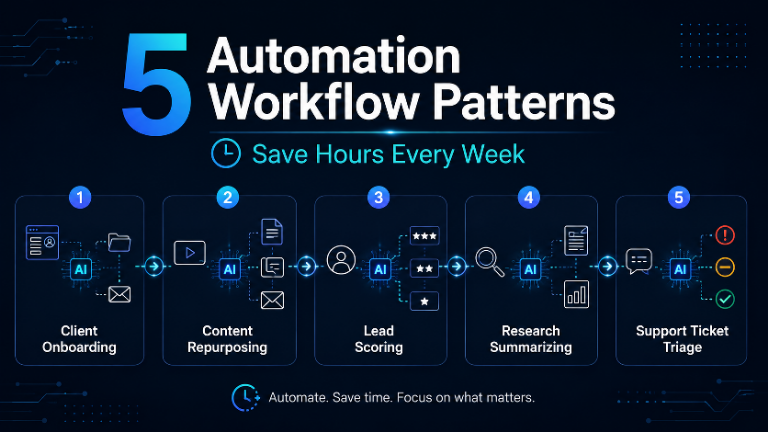
TL;DR You don’t need an expensive AI agent to save real time. Five repeatable automation patterns — client onboarding, content repurposing, lead scoring, research summarizing, and support-ticket triage — show up again and again in small business automation, usually built with Make.com or n8n plus a connected AI model. This post walks through how each pattern works, what tools go into it, and what to watch for, so you can build one yourself this week.
If you’ve spent any time scrolling automation content lately, you’ve probably seen the same claim over and over: “this workflow saved me 10 hours a week.” I used to raise an eyebrow at posts like that — the specifics never quite added up, and I could never tell if the business behind the claim was real.
Here’s the thing: the workflows themselves are real and well documented, even when the exact “business saved X hours” story attached to them is impossible to verify from the outside.
So instead of inventing a business and specific numbers to make this post sound more impressive, I’m showing you the five automation patterns that show up constantly across automation research and real builds — with the actual trigger-by-trigger steps — so you can judge for yourself whether one would help you.
By the end, you’ll have five workflow blueprints you can build with tools you likely already know from this blog, plus a clear sense of which one to try first.
“You don’t need a fancy AI agent to save hours every week. You need one clear, repetitive task and one working automation.”
Why These Patterns Matter (Especially for Beginners)
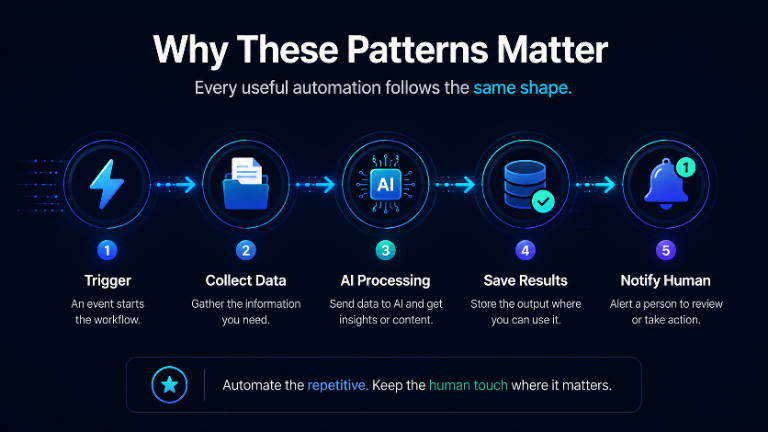
Most automation content explains what a tool does. Far fewer show you the actual shape of a working automation — trigger, steps, and where a human still needs to check the output.
That structure is what’s missing if you’ve built one small Zap or scenario but aren’t sure how to combine steps into something genuinely useful.
According to a review of Zapier’s and Salesforce’s own workplace automation research, employees typically report saving in the range of 10–12 hours a week once repetitive tasks like data entry and status updates are automated, while business owners see smaller but still meaningful gains from automating approvals and reporting (source, 2026).
Treat any single number like that as a directional estimate, not a guarantee — your results depend entirely on which tasks you automate and how much manual work they replaced.
These five patterns are worth learning because they cover the categories of repetitive work almost every business has: onboarding, content, sales, research, and support. Learn the shape of one, and you can rebuild it for nearly any niche.
Key Takeaways
- Almost every useful automation follows the same shape: trigger → collect data → send to AI → save results → notify a human.
- Start with one repetitive task, not your whole business — the beginner mistake is trying to automate everything at once.
- Keep a human review step for anything client-facing. AI drafts; a person still approves.
- Make.com and n8n both handle these patterns well — the right one depends on your budget and comfort with technical setup.
What does an automated client-onboarding workflow look like?
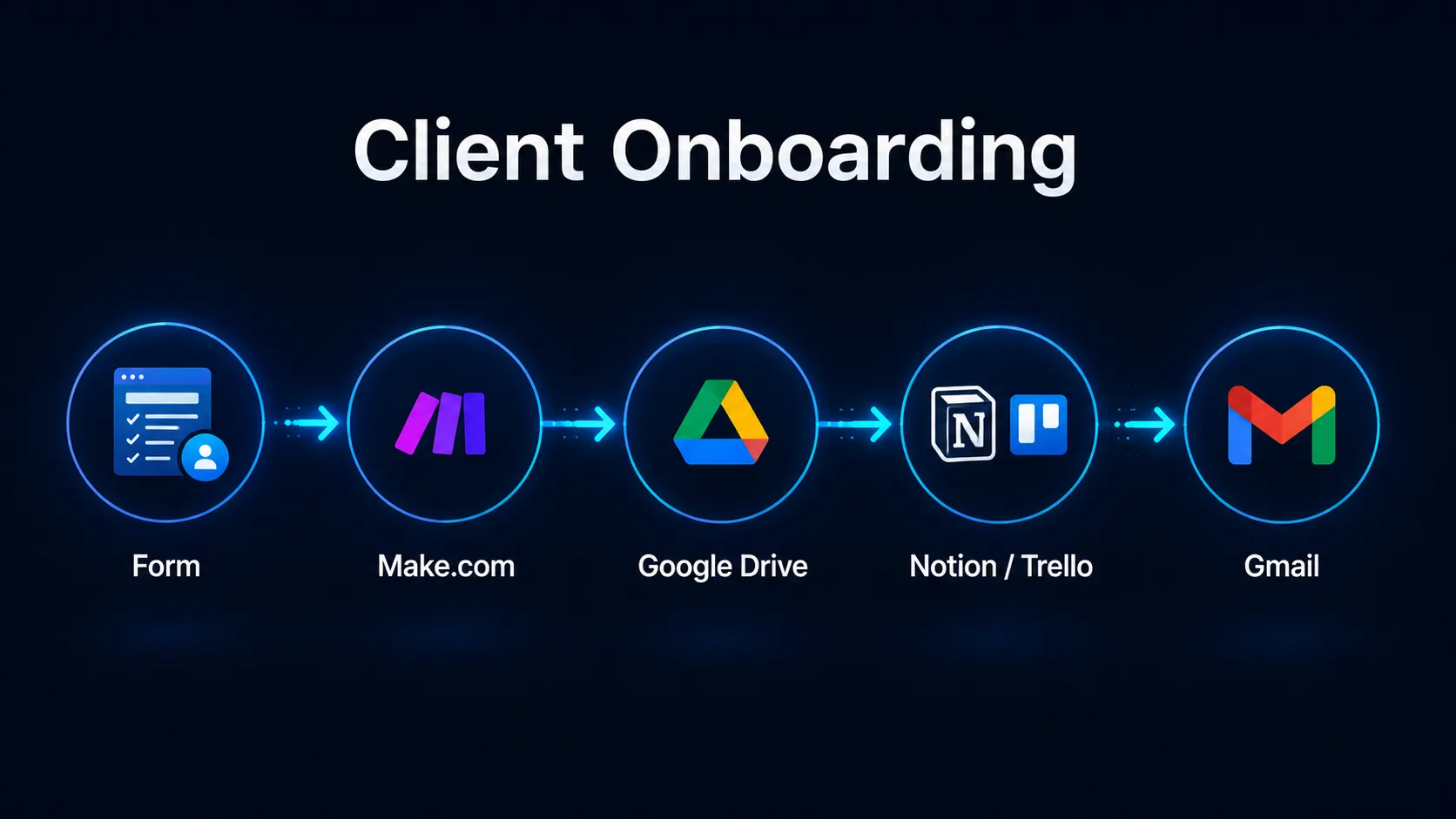
A client-onboarding automation typically triggers off a new form submission, then creates a project folder, a project board entry, and a welcome email automatically — turning a task that often eats an hour or two of manual setup into a few minutes of review.
Tools: Make.com, a form tool (Typeform or Google Forms), Google Drive, Notion or Trello, and Gmail.
How it’s typically built:
- Trigger: a new client submits an intake form.
- Make.com creates a row in a tracking sheet, a folder structure in Drive, and a new project page from a template.
- It sends a personalized welcome email with links to the new folder and project page.
- It notifies the team in Slack or email so nothing gets missed.
A person still spends a few minutes reviewing the output before it goes to the client — but the copy-paste setup work disappears.
How can automation turn one piece of content into a week of posts?
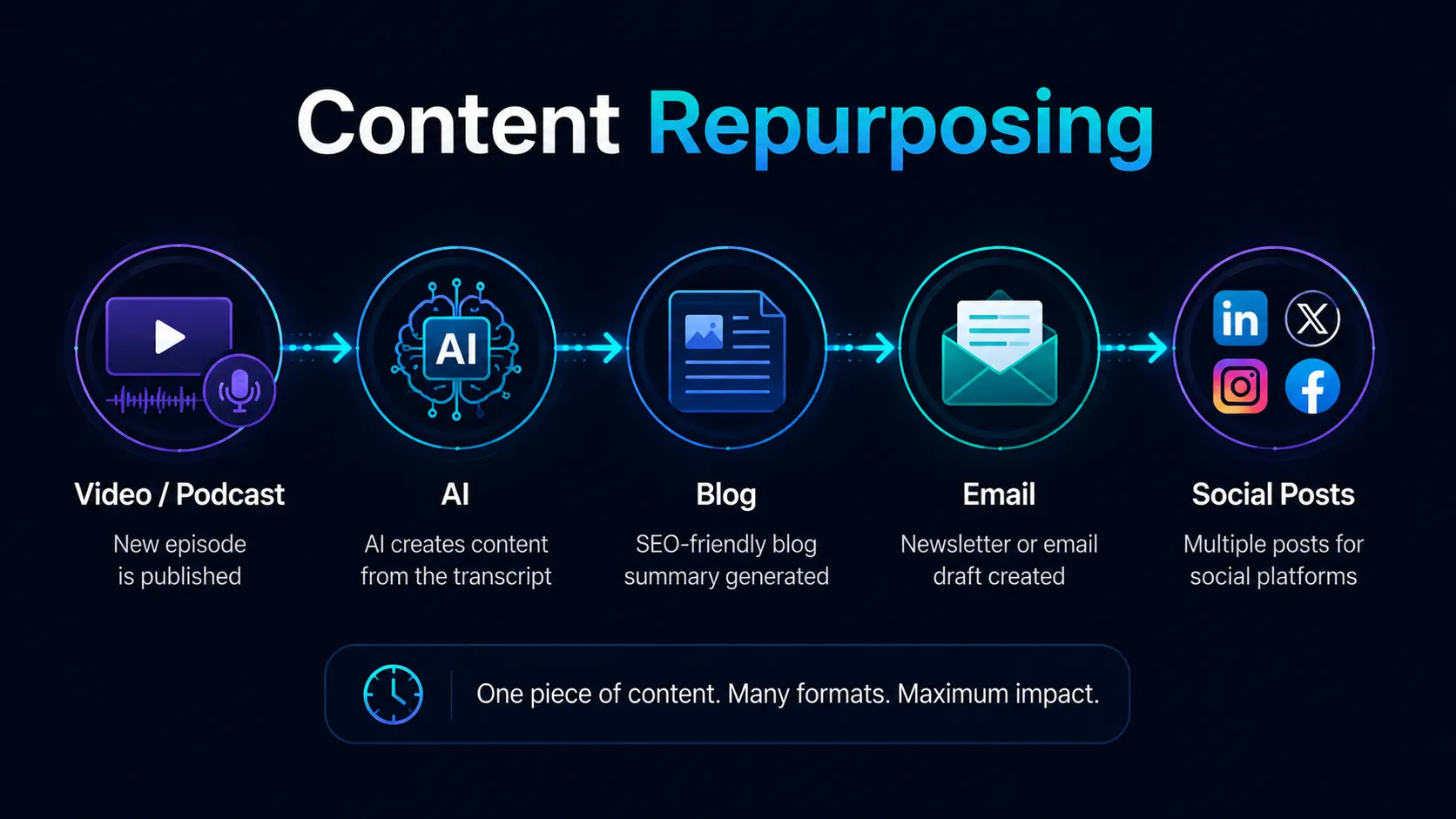
A content-repurposing workflow pulls the transcript of a new video or podcast episode, sends it to an AI model with a clear prompt, and returns drafts for several social posts, an email, and a short blog summary — cutting a multi-hour weekly task down to a short review-and-schedule session.
Tools: Make.com, YouTube or podcast RSS, the ChatGPT or Claude API, Google Docs, and a scheduler like Buffer.
- Trigger: a new video or episode is published.
- Make.com fetches the transcript and sends it to the AI model with instructions for each content type you want.
- Drafts land in a shared Google Doc, organized by format.
- You get a notification that new drafts are ready to review.
The output is a first draft, not a finished post — this pattern only works well if you keep 15–20 minutes in the loop for editing before anything goes live.
What does an AI-assisted lead-scoring workflow look like?
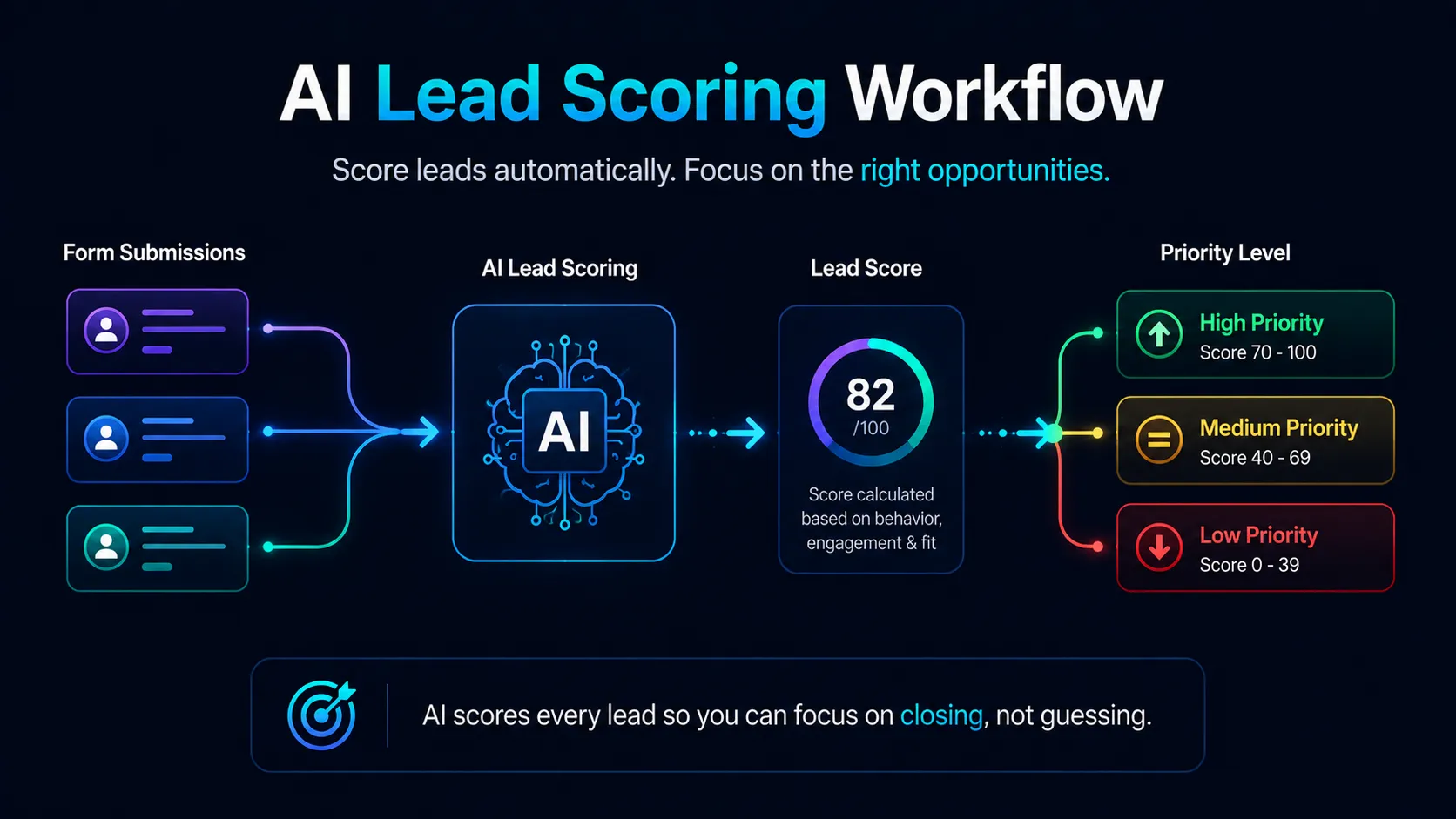
A lead-scoring automation sends new form submissions to an AI model that scores them against your criteria (budget, timeline, fit) and writes a short summary, so you can see at a glance which leads deserve a call first instead of reading every submission in full.
Tools: n8n or Make.com, a form tool, an AI API (OpenAI or Claude), and a tracker like Airtable or Google Sheets.
- Trigger: a new lead form is submitted.
- The workflow sends the lead’s answers to the AI model with a scoring prompt.
- The score and a short summary are written into your CRM or spreadsheet.
- High-priority leads trigger an instant Slack or email alert.
This pattern doesn’t replace your judgment — it just moves the highest-priority leads to the top of your list faster.
How can automation speed up product or competitor research?
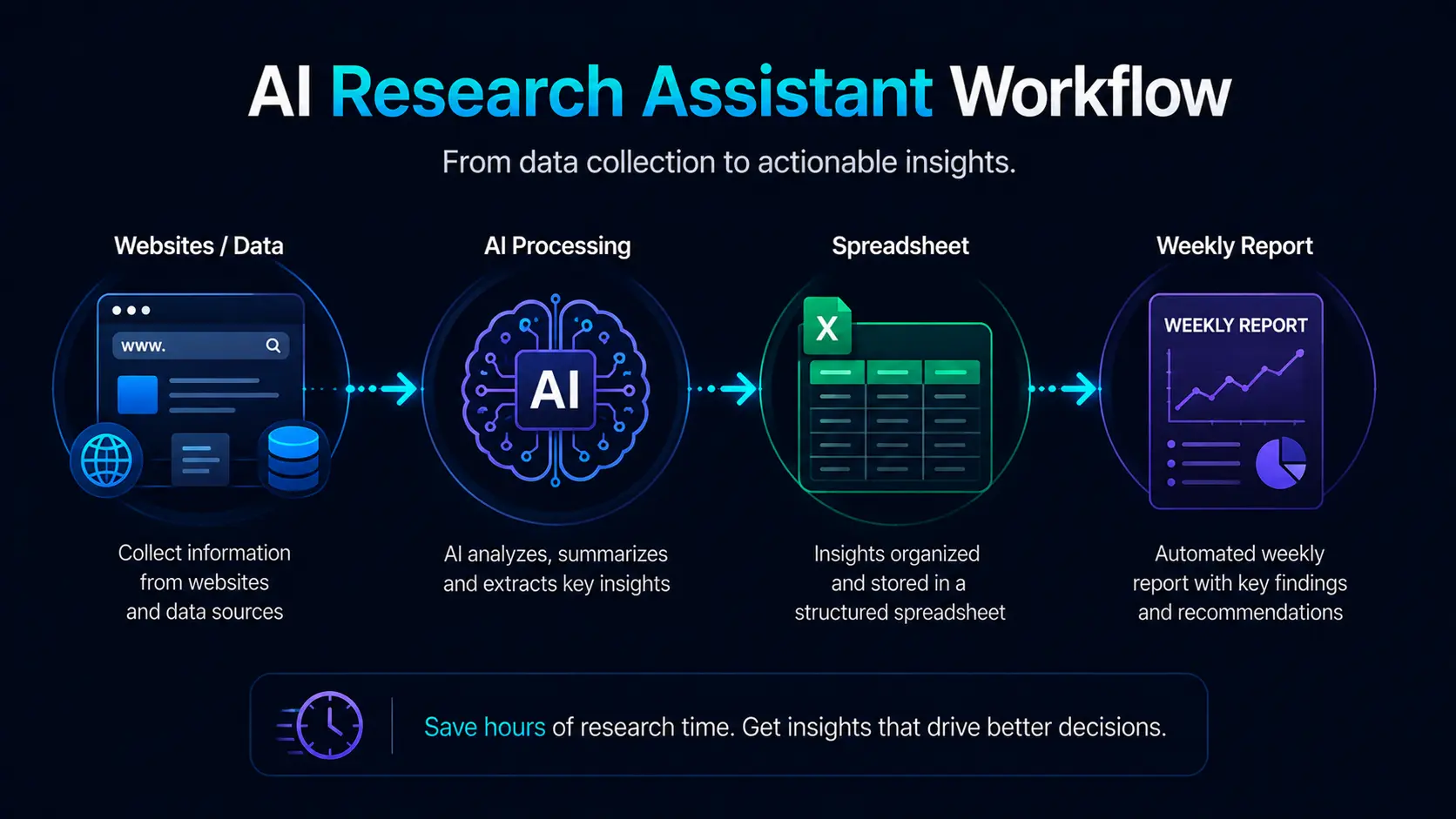
A research-assistant workflow runs on a schedule, pulls product or competitor data through a scraping tool, and asks an AI model to rank and summarize the findings — replacing hours of manual browsing with a short weekly report you review and act on.
Tools: Make.com, a scraping API (like Apify), the ChatGPT API, and Google Sheets.
- Trigger: a scheduled run (for example, every Monday morning).
- The scraper pulls structured data on a set of products or competitors.
- The AI model scores and explains the top findings in plain language.
- Results land in a spreadsheet with a summary notification.
Treat the AI’s ranking as a starting point for your own judgment, not a final verdict — it’s working from surface-level data, not your full market knowledge.
What does an AI-assisted support-ticket triage workflow look like?
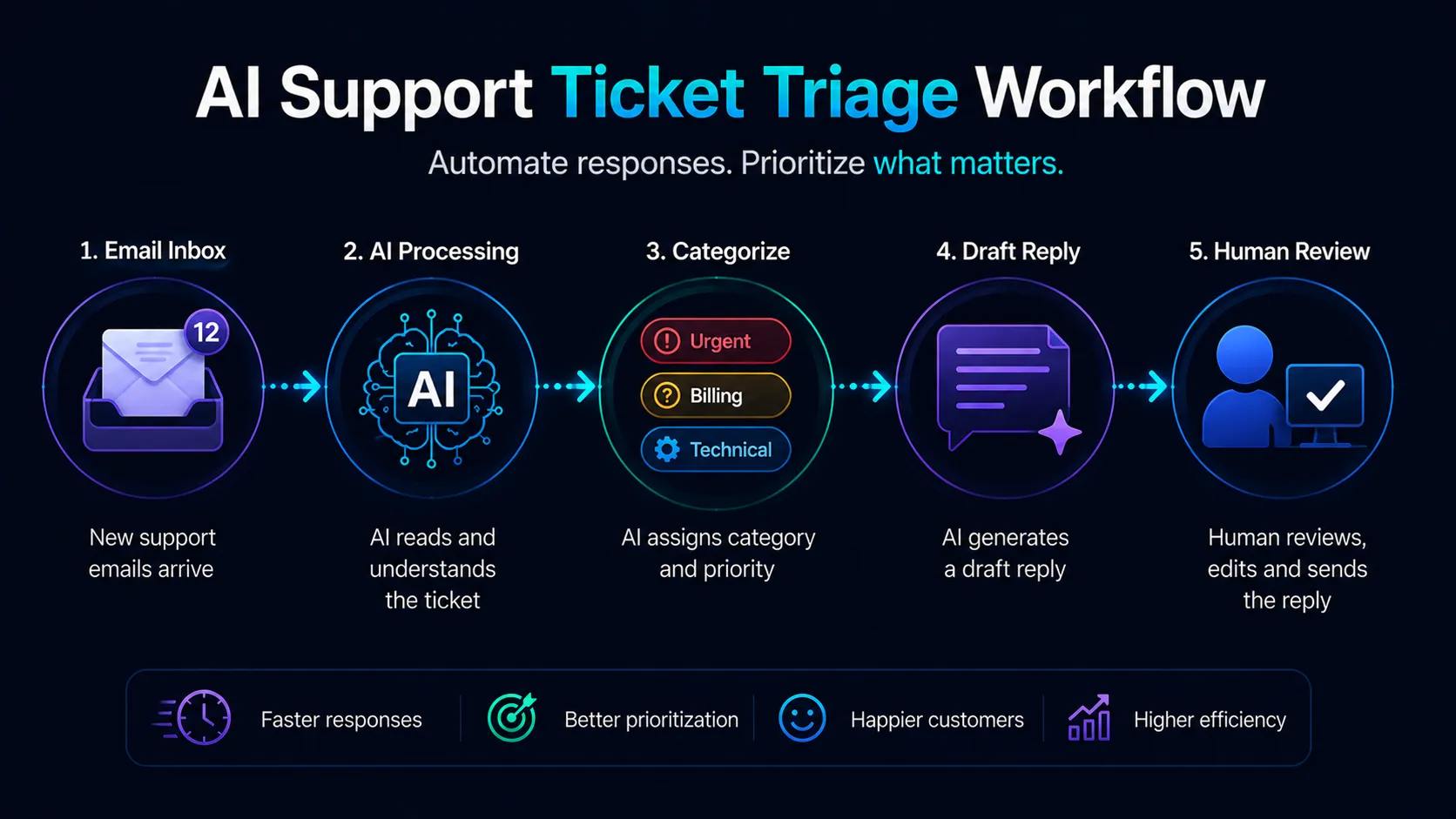
A support-triage workflow classifies new tickets by category and priority, drafts a first response, and flags urgent issues for immediate attention — so a support inbox gets sorted automatically instead of read one email at a time.
Tools: n8n, a help desk tool (Zendesk, Help Scout, or even Gmail), and an AI API.
- Trigger: a new support ticket or email arrives.
- The workflow sends the ticket text to the AI model to classify, prioritize, and draft a first response.
- The ticket is updated with a tag, priority, and draft reply for a human to review or send.
- High-priority tickets trigger an instant team alert.
Consistent categorization is the real win here — it’s easy for busy teams to under-prioritize tickets that don’t sound urgent but actually are.
What patterns can beginners take from this?
A few things hold true across all five patterns: almost every useful automation follows the same shape — trigger, collect data, send to AI, write back, notify a human — and none of them require a complex AI agent. Human review stays part of the process everywhere it touches a client or a public-facing message.
If you’re building your first automation for yourself or a client, pick one pattern that matches a task you already do by hand, and build it end-to-end before moving to the next one.
If you want the full path from “I built a workflow” to “someone paid me for it,” I walk through that in how to get your first AI automation client.
Common mistakes to avoid
- Trying to automate your entire business at once instead of starting with one clear workflow.
- Skipping human review, especially for anything client-facing.
- Feeding messy or inconsistent data into the AI step — the output is only as good as the input.
- Picking a tool because it’s trending rather than because it fits the task.
When should you use Make.com, n8n, or Zapier for these patterns?
Make.com and Zapier suit beginners who want fast, visual setup without touching code; n8n suits people comfortable with a bit more technical configuration who want lower costs or self-hosting. All three can run every pattern above — the difference is setup speed versus long-term flexibility.
| Need | Best Fit | Why |
| Fast setup, no coding | Make.com or Zapier | Visual builders, large app libraries, good for beginners. |
| Lower cost, self-hosting, more control | n8n | Open-source and flexible, best for technical users and agencies. |
| Very simple, single-step automations | Zapier | Easiest for basic “if this, then that” flows. |
| Complex multi-step workflows with AI | Make.com or n8n | Better handling of branches, loops, and API calls. |
Quick heads up: the link below is my Make.com referral link. If you sign up through it, I earn a small commission at no extra cost to you — it’s one of the ways I keep this site running.
I only recommend tools I actually use myself. If you’re new to Make.com and want to try building one of these patterns yourself, here’s the link I use. For a full walkthrough of the platform, my Make.com beginner’s guide covers scenarios, modules, and your first automation step by step.
And if you’re still deciding between tools, my Zapier vs. Make.com vs. n8n comparison breaks down pricing and learning curve for each.
Frequently Asked Questions
Do I need to know how to code to build these workflows?
No. Make.com, Zapier, and n8n are all visual, no-code platforms. n8n has a slightly steeper learning curve than the other two, but none of them require writing traditional code to build the patterns in this post.
Which pattern should a complete beginner try first?
Start with client onboarding or content repurposing — both use simple, linear steps (form or trigger → AI → output) with low risk if something goes wrong, which makes them the easiest patterns to learn the trigger-to-action logic on.
How much do these tools cost to get started?
Make.com, Zapier, and n8n all offer free tiers generous enough to build and test any of these five patterns before you pay anything. Costs scale up once you’re running them at real business volume, so check current pricing before committing.
Can I really save 10+ hours a week with one automation?
It depends entirely on how manual and repetitive the task currently is. Industry research points to real, meaningful time savings from automating repetitive work, but the exact number varies a lot by task — treat any specific hours-saved figure as an estimate, not a promise.
If this gave you a clearer picture of how to get started with automation, you might also like my breakdown of how to become an AI automation specialist — it goes deeper into building this into a career path, not just a personal time-saver.