

If you’ve just discovered Make.com, you’re probably feeling two things at once: excited by how much is possible, and completely unsure where to actually start.
That’s exactly where I was.
The platform connects over 3,000 apps and can automate almost anything — which sounds amazing until you open it for the first time and realise you have no idea which workflow to build first, or whether what you’re building is even useful.
So this post cuts through the noise. Instead of showing you 47 things you could automate, I’m going to walk you through the 5 workflows every beginner should build first — in the right order, from simplest to most powerful. Each one teaches you a core skill, produces a real result the same day you build it, and gives you a foundation for everything that comes next.
By the time you finish all five, you’ll have a working automation system running in the background of your life — and you’ll understand Make.com well enough to start building your own.
New to Make.com? Before diving in, read my Complete Beginner’s Guide to Make.com to understand how scenarios, modules, and triggers work. This post assumes you have a free account set up and understand the basics.
What You Need Before You Start
You only need three things:
- A free Make.com account (sign up here — the free plan gives you 1,000 credits per month and 2 active scenarios, which is plenty to build everything in this post)
- A Gmail or Google account
- About 30–60 minutes per workflow
No coding. No technical background. No paid subscription needed for the first three workflows.
One quick note on Make.com’s pricing: the free plan gives you 1,000 credits per month, a limit of 2 active scenarios, and a 15-minute minimum interval between scheduled runs. That’s enough to learn with, but if you want all five workflows running simultaneously you’ll need the Core plan.
Core costs $9/month and gives you 10,000 credits, unlimited active scenarios, and scheduling down to 1-minute intervals. For most beginners just starting out, the free plan is the right place to begin.
Let’s build.
Workflow 1: Auto-Save Email Attachments to Google Drive
Difficulty: ⭐☆☆☆☆ Beginner
Time to build: 15 minutes
What it teaches: Triggers, basic module connections, file handling
Who it’s for: Anyone who regularly receives files by email
Why Start Here
This is the perfect first workflow because it does something genuinely useful — no more manually saving invoices, contracts, or reports from your inbox — and it only requires two modules to build. Two. That’s it.
It also teaches you the single most important concept in Make.com: the trigger-action relationship. Something happens (you receive an email with an attachment) and Make does something in response (saves that attachment to a folder). Everything in automation is a version of this pattern.
What It Does
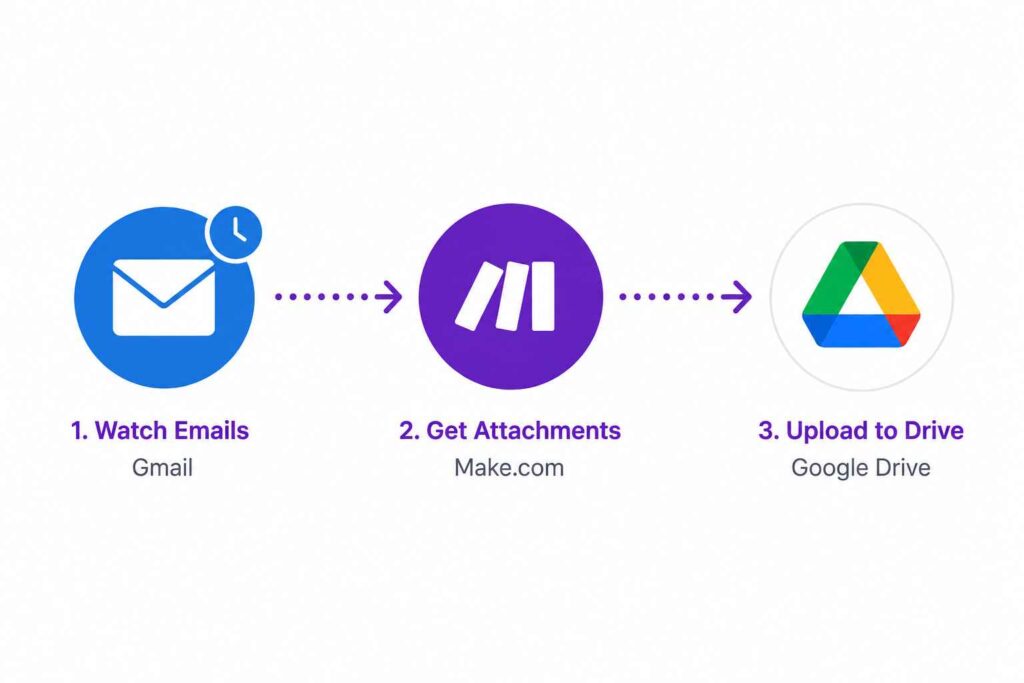
Every time you receive an email with an attachment, Make automatically saves that file to a folder in your Google Drive. The attachment is saved in its original format, exactly as it arrived. No clicking. No forgetting. No hunting through your inbox three weeks later.
How to Build It
Step 1: Open Make.com and click Create a new scenario.
Step 2: Click the + button to add your first module. Search for Gmail and select Watch Emails. This is your trigger — it watches your inbox and fires whenever a new email arrives.
Step 3: Connect your Gmail account when prompted. Set the folder to Inbox, set Maximum number of results to 1, and tick the box for Attachments only so the workflow only fires when there’s actually a file to save.
Step 4: Click the + to add a second module. Search for Google Drive and select Upload a File.
Step 5: Connect your Google Drive account. Choose the folder where you want attachments saved (create a new one called “Email Attachments” if you like). In the File field, map it to the attachment data from your Gmail trigger using the variable panel on the right.
Step 6: Click Run once to test it. Send yourself an email with a PDF or image attached, then watch the workflow fire and the file appear in your Drive folder.
Step 7: Turn the scenario On. Done.
What You Just Learned
You built a real, working automation in under 15 minutes. More importantly, you now understand that every Make.com scenario has the same structure: a trigger that watches for something, and one or more actions that respond to it. That mental model carries through every other workflow in this post.
Workflow 2: Auto-Send a Welcome Email When Someone Fills a Form
Difficulty: ⭐⭐☆☆☆ Beginner
Time to build: 20–30 minutes
What it teaches: Webhooks, form triggers, personalized email automation
Who it’s for: Freelancers, bloggers, anyone with a contact form or newsletter signup
Why Build This One Second
This workflow introduces you to webhooks — the method that makes automations respond instantly rather than checking for updates every 15 minutes. It’s also the first workflow with a direct professional use case: if you’re building a freelance business or a blog, this is the kind of automation your clients are paying good money for someone to set up.
First impressions matter, and this workflow lets you automatically send a welcome email the moment someone signs up. For a client, that could mean the difference between a lead feeling valued immediately versus waiting hours for a response.
What It Does
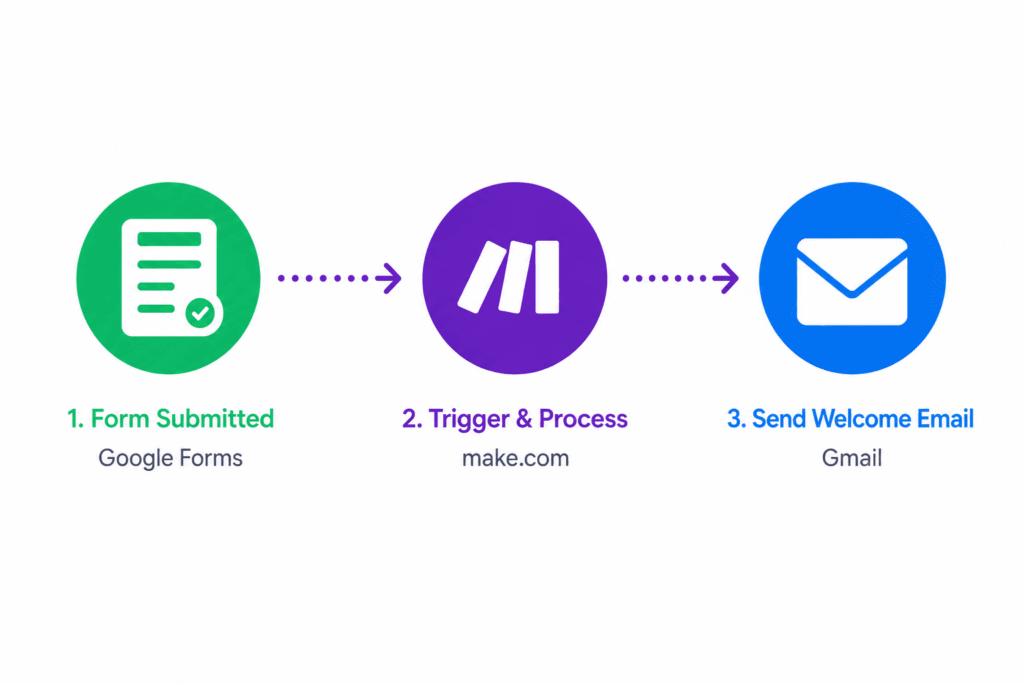
Someone fills in a form (a contact form, a newsletter signup, a lead capture form — anything). Make instantly sends them a personalised welcome email with their first name, without you doing anything.
How to Build It
Step 1: Create a new scenario. Add your first module by searching for Webhooks and selecting Custom Webhook. Click Add to generate a unique webhook URL and copy it.
Step 2: Go to your form tool — this works with Google Forms, Typeform, WPForms, Tally, or any tool that can send data to a URL. In your form settings, find Webhooks or Integrations and paste the Make webhook URL you just copied.
Step 3: Back in Make, click Run once so it’s listening. Then submit a test entry on your form with a first name and email address. Make will receive that submission and display the data it captured — this is how it learns the structure of your form.
Step 4: Click the + to add your second module. Search for Gmail and select Send an Email.
Step 5: Fill in the email fields. For To, map it to the email field captured from your form. For Subject, write something like: Welcome! Here’s what happens next. For the body, write your welcome message and use the {{name}} variable from the form data to personalise it with the person’s first name.
Step 6: Run a live test by submitting your form again and watching the email arrive in your inbox within seconds.
Step 7: Turn the scenario On.
What You Just Learned
Webhooks make automations instant. Understanding this unlocks a huge range of more powerful workflows later — any time you want Make to react to something the moment it happens rather than checking on a schedule, you’ll use a webhook. This skill alone is worth its weight in client projects.
Workflow 3: Cross-Post New Content to Social Media Automatically

Difficulty: ⭐⭐⭐☆☆ Intermediate
Time to build: 30–45 minutes
What it teaches: RSS triggers, multi-step workflows, multiple actions from one trigger
Who it’s for: Bloggers, content creators, anyone who publishes online
Why Build This One Third
By now you understand triggers and actions. This workflow teaches you something new: one trigger firing multiple actions. When you publish a new blog post, Make will automatically post about it on LinkedIn, Facebook, or any other platform you connect — all at once, without you touching it.
Social media automation is a serious time-saver, and this workflow lets you cross-post new content to multiple platforms with one publish action. For a blogger or freelancer, this replaces a task that would otherwise take 20–30 minutes of manual copying, formatting, and posting every single time you publish.
What It Does
The moment you publish a new blog post, Make detects it via your blog’s RSS feed and automatically creates a post on your connected social media accounts — with the title, a short excerpt, and a link back to the article. All formatted and posted without you lifting a finger.
How to Build It
Step 1: Create a new scenario. Add your first module by searching for RSS and selecting Watch RSS Feed Items. This is your trigger.
Step 2: In the URL field, enter your blog’s RSS feed address. For a WordPress blog, this is usually yoursite.com/feed. Set Maximum number of results to 1.
Step 3: Click Run once, then publish a post on your blog (or use an existing post URL). Make will pull in the latest item from your feed to use as test data.
Step 4: Click + to add your first action. Search for LinkedIn and select Create a Post. Connect your LinkedIn account. In the Text field, write your post format — for example:
New post: {{title}} — {{link}} #AI #Automation #Beginners
Map the title and link variables from your RSS data using the panel on the right.
Step 5: Add another + below your LinkedIn module. This creates a second parallel action from the same trigger. Add a Facebook Pages module and set it up the same way.
Step 6: Test the full workflow and watch posts appear on both platforms from one trigger.
Step 7: Turn the scenario On.
What You Just Learned
One trigger can power many actions. This is where Make starts to feel genuinely powerful — not just “do one thing when something happens,” but “do five things automatically.” This multi-action structure is the foundation of every advanced workflow.
Workflow 4: Capture Leads and Send Yourself an Instant Notification
Difficulty: ⭐⭐⭐☆☆ Intermediate
Time to build: 30–45 minutes
What it teaches: Data routing, Google Sheets logging, Slack or email alerts
Who it’s for: Freelancers, small business owners, anyone generating leads
Why Build This One Fourth
This is where your workflows stop being about saving time and start being about making money. This is also the workflow that small business owners will pay you to build for them — most of them have no idea new leads are coming in until they happen to check their email.
If you collect leads via forms, this workflow automatically logs them into a Google Sheet — and then instantly notifies you so you never miss a warm lead sitting in your inbox.
Speed matters in lead follow-up. Responding within 5 minutes of someone contacting you can increase conversion rates by 9x compared to responding after 30 minutes. This workflow makes that possible without any manual monitoring.
What It Does
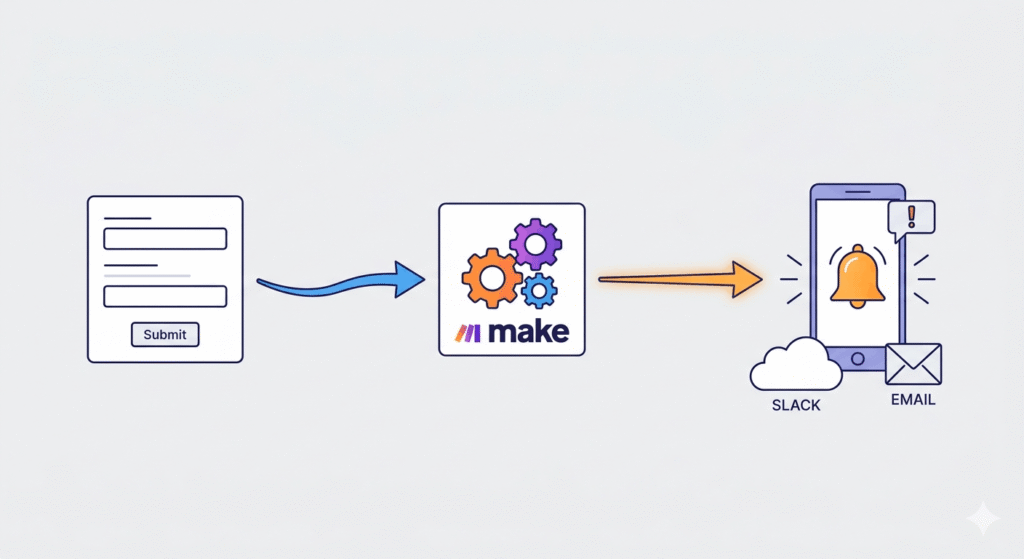
Someone fills in your contact or lead capture form. Make instantly: (1) saves their details to a Google Sheet for your records, and (2) sends you a Slack message or email notification with their name, email, and what they’re interested in — so you can follow up immediately.
How to Build It
Step 1: Create a new scenario. Set up a Custom Webhook trigger the same way you did in Workflow 2. Connect it to your lead capture form.
Step 2: Add your first action: Google Sheets → Add a Row. Connect your Google account and select a spreadsheet (create one called “Leads” with columns for Name, Email, Message, and Date). Map the form fields to the correct columns.
Step 3: Click + after the Google Sheets module to add a second action. If you use Slack, search for Slack → Send a Message. If not, use Gmail → Send an Email to yourself.
Step 4: Write your notification message. Something like:
🔔 New lead! Name: {{name}} | Email: {{email}} | Message: {{message}} | Time: {{now}}
Map each variable from your webhook data.
Step 5: Test it by submitting your form. Watch the row appear in Google Sheets and the notification arrive in Slack (or your inbox) within seconds.
Step 6: Turn the scenario On.
What You Just Learned
You just built a workflow that a small business would genuinely pay $150–$300 to have set up. It stores data, sends alerts, and runs silently 24/7 without any maintenance. This is what “selling automation services” actually looks like in practice — not futuristic robots, just reliable, useful plumbing that businesses desperately need.
Want to turn this into a freelance service? Read my post on How to Get Your First AI Automation Client — this exact workflow is one of the most in-demand services for local businesses right now.
Workflow 5: AI-Powered Email Summarizer
Difficulty: ⭐⭐⭐⭐☆ Advanced Beginner
Time to build: 45–60 minutes
What it teaches: OpenAI integration, AI modules, processing and transforming data
Who it’s for: Anyone who deals with high email volume or long client messages
Why Build This One Last
This is the workflow that makes people’s jaws drop when you show it to them — and it’s the one that separates you from every other beginner who has “learned Make.com.” Once you can connect an AI model to your automation, you stop building simple if-this-then-that workflows and start building intelligent systems that think.
The pattern becoming standard in 2026 is AI-routed automation — one scenario handles intake across email and forms, and an AI model decides what to do with it. This workflow is your first step into that world.
What It Does
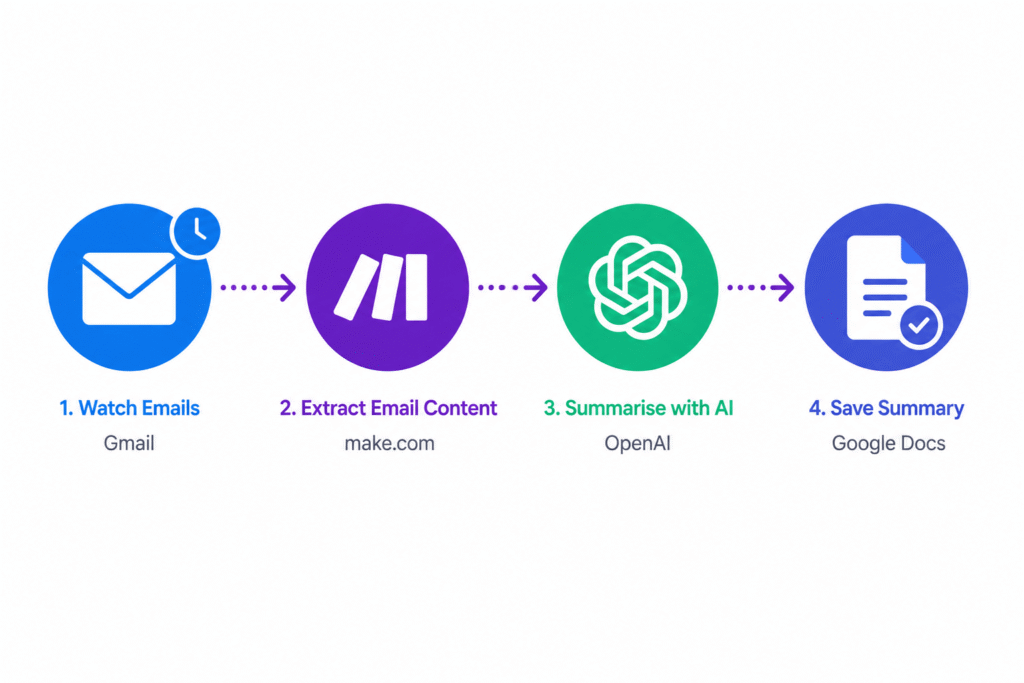
When a long email arrives in a specific Gmail label (like “Client Emails”), Make automatically sends the full email body to ChatGPT, which summarises it in 3 bullet points and identifies the action required.
Make then saves that summary to a Google Sheet or sends it to you as a Slack message — so instead of reading a 600-word email, you see a 3-line summary telling you exactly what you need to do.
How to Build It
Step 1: Create a new scenario. Add a Gmail → Watch Emails trigger. This time, set the label filter to a specific Gmail label (create a label called “To Summarise” in Gmail first and apply it to emails you want processed).
Step 2: Add a Text Parser → HTML to Text module. This strips the HTML formatting from emails so the text is clean before sending to OpenAI. Map the email body from your Gmail trigger.
Step 3: Click + to add an OpenAI → Create a Completion module. You’ll need to connect your OpenAI account using an API key (free to create at platform.openai.com — you pay per use, which for this workflow costs fractions of a cent per email).
Step 4: In the Prompt field, write your instruction to the AI:
Summarise the following email in exactly 3 bullet points. Then on a new line, write: “Action required:” followed by the one thing I need to do in response. Keep the whole thing under 100 words.
Email: {{text}}
Map {{text}} from your Text Parser module.
Step 5: Add a final action — either Google Sheets → Add a Row (to log all summaries) or Gmail → Send an Email to yourself with the summary as the body.
Step 6: Apply the “To Summarise” label to a long email in your inbox. Click Run once in Make and watch it process: the email goes in, the summary comes out.
Step 7: Turn the scenario On.
What You Just Learned
You connected a human language AI to an automation workflow. That’s the skill that defines the next decade of digital work. The Make.com and OpenAI integration unlocks possibilities including content generation, automated summaries, chatbots, and sentiment analysis — and AI automations are the number one trend shaping automation platforms in 2025 and 2026. You’re now building inside that trend, not just watching it from the outside.
What to Build Next
You’ve just gone from zero to a working, five-scenario automation system. Here’s what that looks like in practice:
| Workflow | Runs automatically when… |
|---|---|
| Email Attachments → Drive | You receive any email with a file |
| Welcome Email | Someone fills your signup form |
| Social Media Crosspost | You publish a new blog post |
| Lead Notification | A new lead submits your contact form |
| AI Email Summariser | You label an email “To Summarise” |
That’s 5 live automations, saving you anywhere from 2–5 hours of manual work every week, depending on your volume.
The natural next step from here is building automations for clients. The lead notification workflow (Workflow 4) is one of the most in-demand services for small businesses, freelancers, and local service companies — most of whom have no idea this is even possible, let alone how to build it. If you can set it up in 45 minutes, you can charge $150–$300 for the service, and maintain it for a monthly retainer.
Ready to turn this into income? Read: How to Make Money with Make.com: 6 Real Services You Can Offer Clients
Frequently Asked Questions
Do I need to pay for Make.com to use these workflows?
The first three workflows can run on the free plan. Make.com’s free plan includes 1,000 credits per month and limits how often scenarios can run — most real workflows with multiple steps will exceed these limits once they’re running at volume. To run all five workflows simultaneously with no restrictions, the Core plan at $9/month is the right choice. Start free, upgrade when you hit the ceiling.
What happens if a workflow breaks?
Make.com sends you an email notification when a scenario encounters an error, and shows you exactly which module failed and why. Most errors are simple — a disconnected app account or a field that didn’t map correctly. The error log tells you exactly what to fix.
Can I sell these workflows to clients?
Yes — and you should. Workflows 2, 3, and 4 are exactly the kind of automations small businesses will pay a freelancer to build and maintain. The key is framing them around the client’s specific problem (“you’re losing leads because no one sees them until the next morning”) rather than the technical solution.
How many workflows can I run on the free plan?
The free plan limits you to 2 active scenarios at a time. That means you can run two of these five workflows simultaneously without paying anything. To run all five, you need the Core plan.
Final Thought
Most people who sign up for Make.com spend two weeks watching tutorials and never actually build anything. You just built five.
That’s the real skill — not knowing how every feature works in theory, but shipping a working scenario and seeing it run. Everything you learn from here is a variation on what you’ve already done.
The difference between a beginner and someone who charges for automation services isn’t knowledge — it’s the habit of building first and figuring out the rest as you go.
You’re already there.
Enjoyed this post? You might also like:
- Make.com Complete Beginner’s Guide (2026) — the full overview of how the platform works
- How to Become an AI Automation Specialist in 2026 — turn this skill into a full career
- What Is n8n and Should Beginners Use It? (Honest Review) — the full guide of how n8n works
- Zapier vs Make.com vs n8n: Which Automation Tool Should You Choose? – the full comparison