
TL;DR
MCP (Model Context Protocol) is an open standard, created by Anthropic, that lets AI tools like Claude and ChatGPT securely connect to your apps, files, and data — without a custom integration for every single combination. Think of it as a universal charging cable for AI. You don’t need to write a line of code to benefit from it, but understanding it will help you get a lot more out of the AI tools you already use.
If you’ve seen “MCP” mentioned in a Claude update, a LinkedIn post, or an automation tutorial and quietly thought, “I have no idea what that actually means, and I’m too far behind to ask” — you’re not behind.
You’re just hearing about something that, honestly, most people outside of software engineering only started hearing about in the last year or so.
I remember the first time I saw “MCP server” in a setup guide. I nodded along like I understood, closed the tab, and went and looked it up later. So let’s do the version I wish someone had given me.
MCP is one of the open standards that can let your AI assistant check your calendar, run a Make.com scenario, or pull real data from a spreadsheet — without you copying and pasting anything between windows.
Key Takeaways
MCP stands for Model Context Protocol — an open standard for connecting AI models to outside tools and data. It was created by Anthropic in November 2024 and is now governed by a vendor-neutral group under the Linux Foundation. OpenAI, Google, and Microsoft have all adopted it — it’s not a “Claude-only” thing anymore. You don’t need to code to use MCP as a beginner. You just need to know what it enables. It’s closely related to AI agents and automation tools like Make.com and n8n, but it isn’t the same thing as either.
What Is MCP in Plain English?
MCP (Model Context Protocol) is a shared set of rules that lets an AI model like Claude talk to outside tools, files, and services in a consistent way, instead of needing a custom-built connection for every single app.
It’s the plumbing behind the scenes — you don’t see it, but it’s what lets your AI assistant actually do things instead of just talk.
Here’s the analogy that finally made it click for me: before USB-C, every device had its own charging cable. Laptop, camera, headphones, e-reader — different plug for each one, different cable to carry around. USB-C fixed that by giving everything one shared standard.
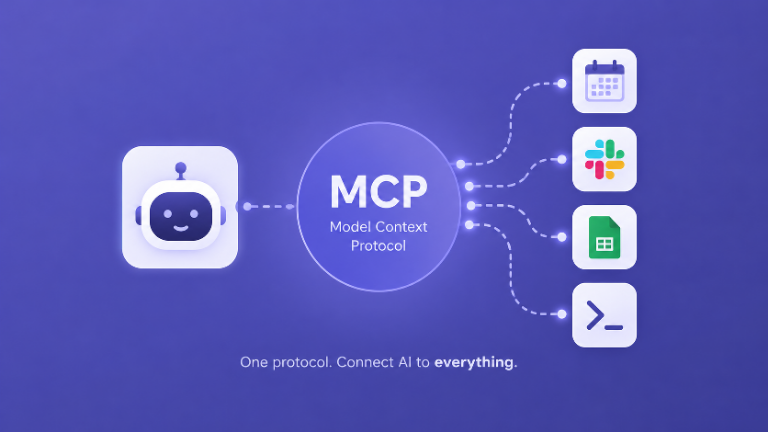
MCP is doing roughly the same thing for AI. Instead of every AI tool needing a custom-built bridge to every app it might need to use, MCP gives them all one shared language.
| AI Assistant → MCP → Apps, Files & Tools (your calendar, spreadsheets, Make.com, Slack, and more) |
Why Does MCP Matter to You?
Setting aside the technical explanation for a second — here’s what it actually changes for you as someone using these tools day to day:
- Less copying and pasting. You stop moving information back and forth between your AI assistant and other apps by hand.
- Your AI can work with real, current information — not just what you happened to type into the chat box.
- It opens the door to more useful automation and AI agents, since those systems rely on exactly this kind of connection to get anything done.
Why Was MCP Created? What Problem Does It Actually Solve?
Before MCP, connecting an AI model to your calendar, your database, or a tool like Slack meant a developer had to build a custom integration for that exact combination.
Multiply that across dozens of AI tools and hundreds of apps, and you get an enormous, duplicated mess of one-off connections that all had to be maintained separately.
MCP collapses that problem. Instead of every AI application needing its own custom wiring to every tool, each tool builds one MCP “server,” and any MCP-compatible AI application can use it.
You go from needing hundreds of unique connections down to a much smaller, shared set — which is why you’ll sometimes see MCP described as solving AI’s “N×M problem.”
How Does MCP Actually Work?
MCP uses a simple client-and-server setup: your AI tool (like Claude) is the “client.” An “MCP server” is a small program that sits in front of an app or data source — your calendar, a spreadsheet, a Make.com scenario — and translates it into MCP’s shared format.
It’s worth being precise here: the server isn’t the app itself, it’s more like a translator standing in front of the app, so the AI knows exactly how to ask it for things.
When you ask your AI assistant to do something that involves that outside tool, the client and server exchange a standard set of messages, the AI gets the information or takes the action, and the result comes back into your conversation.
You never actually see this exchange happen. What you experience is just asking your AI assistant to “check what’s on my calendar tomorrow” and getting a real, accurate answer — because behind the scenes, MCP quietly handled the handshake between the AI and your calendar app.
A concrete example:
You type: “What meetings do I have tomorrow?” Your AI assistant recognizes it needs your calendar, uses the MCP server connected to that calendar to fetch the real data, and answers with your actual schedule — not a guess, and not something you had to copy in yourself.
| Without MCP AI → custom integration → Google Calendar AI → different custom integration → Slack AI → another custom integration → Make.com | With MCP AI → MCP → Google Calendar AI → MCP → Slack AI → MCP → Make.com |
Who Is Actually Using MCP in 2026?
This is no longer an Anthropic-only feature. OpenAI adopted MCP across its Agents SDK, Responses API, and ChatGPT desktop app in March 2025, then rolled out full read-and-write support in September 2025.
Google DeepMind confirmed MCP support for Gemini the following month, and Microsoft has built it into Copilot and Azure AI services. On December 9, 2025, Anthropic donated MCP to the Agentic AI Foundation — a directed fund under the Linux Foundation co-founded by Anthropic, Block, and OpenAI, with Google, Microsoft, AWS, Cloudflare, and Bloomberg supporting it.
In practical terms: MCP has become one of the standard ways AI tools connect to the outside world, not a niche feature tied to one company.
For a beginner, the takeaway is simple: this isn’t a bet on one AI company’s pet project. It’s closer to how Wi-Fi or USB became something every device just supports.
What Can You Actually Do With MCP as a Beginner?
You don’t need to build anything to benefit from MCP. Most of the AI tools you already use are quietly adding MCP support, which means:
- Claude or ChatGPT can pull real information from apps you connect, instead of relying only on what you type in.
- Automation platforms like Make.com now offer an official MCP server, so an AI assistant can trigger or manage your existing Make.com scenarios directly from a conversation, instead of you logging in and clicking through the platform yourself.
- Tools built on n8n are adding similar MCP support, which is worth knowing if you’re weighing automation platforms — our Zapier vs. Make vs. n8n comparison breaks down how the three stack up.
If you’re curious what this looks like in your own account, Make.com’s official MCP server is genuinely one of the simplest ways to see it in action — you connect it once, and from then on, a supported AI assistant can run your existing scenarios for you.
(Heads up: that’s my Make.com referral link below. If you sign up through it, I earn a small commission at no extra cost to you — it’s one of the ways I keep this site running. I only recommend tools I actually use myself.)
Try Make’s official MCP server →
MCP vs. AI Agents vs. Automation Tools — What’s the Difference?
This is where most beginners get tangled up, so let’s untangle it. MCP is a connection standard — it’s the shared language that lets an AI reach outside tools. An AI agent is a system that uses that connection (and others) to plan and carry out multi-step tasks on its own.
An automation tool like Make.com or n8n is a platform for building workflows, which can now use MCP as one way to let an AI trigger or manage those workflows.
Put simply: MCP is the wiring, an agent is the thing making decisions, and Make.com or n8n is where the actual workflow lives. If you want the fuller picture on agents specifically, our beginner’s guide to AI agents is the natural next read.
| MCP | AI Agent | Make.com / n8n |
| The connection standard | The decision-maker | Where the workflow lives |
Is MCP Safe to Use?
Like any technology that gives an AI model access to your real accounts and data, safety comes down to what you choose to connect and how carefully the tool you’re using handles permissions.
Security researchers have flagged real vulnerabilities in some early MCP servers over the past year, which is a normal part of any fast-growing standard maturing — not a reason to avoid it, but a good reason to be deliberate.
As a beginner, the safest approach is to only connect MCP servers from sources you trust (official platforms like Make.com, or tools built directly by Anthropic, OpenAI, or Google), and to review what permissions you’re granting before you approve a connection.
How Do I Actually Get Started With MCP?
You don’t need to set up a server or write code to start benefiting from MCP. The simplest starting point is Claude or ChatGPT’s built-in connector settings, where you can link accounts like Google Drive or Gmail — those connections are often powered by MCP under the hood, even though you’ll just see it labeled as “connectors” or “integrations.”
From there, if you’re already using Make.com for automation, connecting Make’s MCP server is a good second step, since it lets you see the concept working with a tool you already understand. If you haven’t set up Make.com yet, our complete beginner’s guide to Make.com walks you through the basics first.
Frequently Asked Questions
Is MCP the same thing as an AI agent?
No. MCP is the connection standard that lets an AI reach outside tools and data. An AI agent is a system that uses those connections to plan and complete multi-step tasks on its own. MCP is the plumbing; an agent is what uses the plumbing to get something done.
Do I need to know how to code to use MCP?
No. As a beginner, you’ll interact with MCP through settings menus — connecting Claude, ChatGPT, or Make.com to other apps with a few clicks. Building your own MCP server does require coding, but using one someone else built does not.
What is an “MCP server,” exactly?
An MCP server is a small program that exposes a specific app’s tools or data (like your calendar or Make.com account) in MCP’s shared format. It sits in front of the app rather than being the app itself — think of it as a translator, not the thing being translated. You don’t build or manage it as a beginner — you just connect to it.
Is MCP only available for Claude?
No. MCP was created by Anthropic, but OpenAI adopted it in 2025, and Google and Microsoft have also built support into their own AI platforms. As of late 2025, Anthropic handed governance of the standard to a neutral group under the Linux Foundation, so it’s no longer tied to one company.
What’s the difference between MCP and an automation tool like Make.com?
Make.com is a platform for building automated workflows. MCP is a newer, standardized way for an AI assistant to trigger or manage those workflows directly from a conversation. Make.com now offers its own official MCP server, so the two work together rather than compete.
The Bottom Line
MCP isn’t something you need to build or configure to benefit from — it’s already working quietly behind the scenes in the AI tools you likely use today. The part worth remembering: it’s an open, shared standard now backed by every major AI company, not a one-off feature tied to a single product.
| If this made MCP finally make sense, you’ll probably enjoy the rest of what I share — plain-English breakdowns of the AI and automation tools actually worth your time, with no hype and no fake income claims. I send one email when I’ve actually learned something worth passing on. Join the newsletter → |
Well explained and practical. I’ve had good results with Swift-image (/) for stills and instruction edits.. Swift-image
Hilfreich! Audio-zu-Text Smart/Verbatim: Gem Transcribe unter . Gem Transcribe
Muito útil. Speech-to-text: MAI Transcribe 2 (). MAI Transcribe 2