
TL;DR
Make.com can automate the repetitive parts of running a small business — lead follow-up, invoicing, social posting, reporting, and more — without any coding. Below are 25 practical automation ideas, organized by category, each with the apps you’d need and who it’s best for. Most beginners should start with one simple workflow (like the contact-form-to-notification automation) before building anything more advanced. If you’re brand new to Make.com, start with Make.com: The Complete Beginner’s Guide first.
If you run a small business, you already know the feeling: you’re the one copying leads into a spreadsheet, sending the same follow-up email for the tenth time this week, or manually updating inventory after every sale. None of it is hard. It’s just endless.
I felt exactly the same way when I first started looking into automation. It seemed like something only “tech companies” did — not something a solo business owner or a two-person team could realistically set up themselves.
Turns out, that’s not true at all. Once you understand a handful of basic ideas, Make.com lets you hand off almost all of that repetitive work to software that runs quietly in the background, 24/7, without you touching it.
“You don’t need a developer, a big budget, or technical skills to automate your business. You need one repetitive task and about 30 minutes.”
In this guide, I’m walking through 25 real Make.com automation ideas small businesses actually use — not theoretical examples, but the kind of workflows freelancers, coaches, ecommerce owners, and local businesses are running right now.
I’ll show you the problem each one solves, which apps you’d connect, who it’s best suited for, and how difficult it is to build.
Key Takeaways
- Good automations save time, reduce mistakes, and run without you thinking about them.
- Most of the ideas below are beginner-friendly and can be built in under an hour.
- You don’t need to automate everything at once — pick one task that annoys you weekly and start there.
- Make.com’s free plan (1,000 operations/month) is enough to test most of these before you commit to a paid plan.
- If you get good at building these, it can become a service you sell to other small businesses.
Quick Overview: What’s Covered
This guide covers 25 automation ideas across six categories, plus five bonus AI-only ideas at the end. Use the table below to jump to the category most relevant to your business before reading the full list.
| Category | # of Ideas |
|---|---|
| Leads & Sales | 5 |
| Orders & Ecommerce | 4 |
| Scheduling & Customer Support | 3 |
| Content & Social Media | 3 |
| Team & Internal Operations | 4 |
| Reporting & AI-Powered Workflows | 6 |
What Makes a Good Automation?
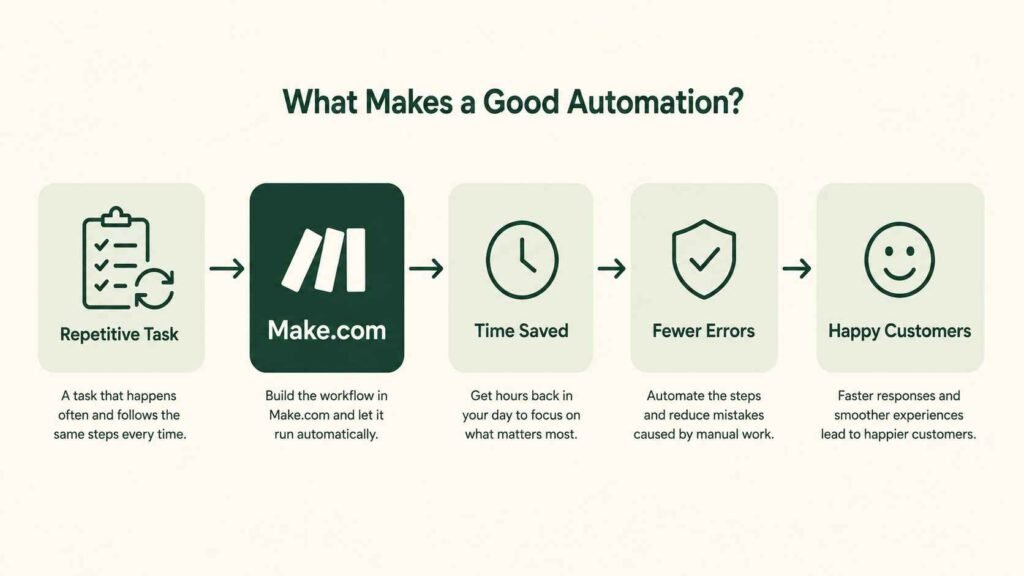
A good automation saves real time, reduces the chance of human error, improves the experience for your customers, and runs on its own without you checking in on it constantly. If a workflow doesn’t do at least one of those things, it’s probably not worth building yet.
Before you dive into the list, it helps to know what you’re actually looking for. Not every repetitive task is worth automating — some are rare enough that manual work is fine.
The best candidates are things that happen often, follow the same steps every time, and eat up minutes (or hours) you’d rather spend elsewhere.
Ready to build your first automation?
The easiest way to learn Make.com is by creating a simple workflow yourself. You can start on the free plan with 1,000 operations each month—more than enough to build and test your first automation.
25 Make.com Automation Ideas for Small Businesses
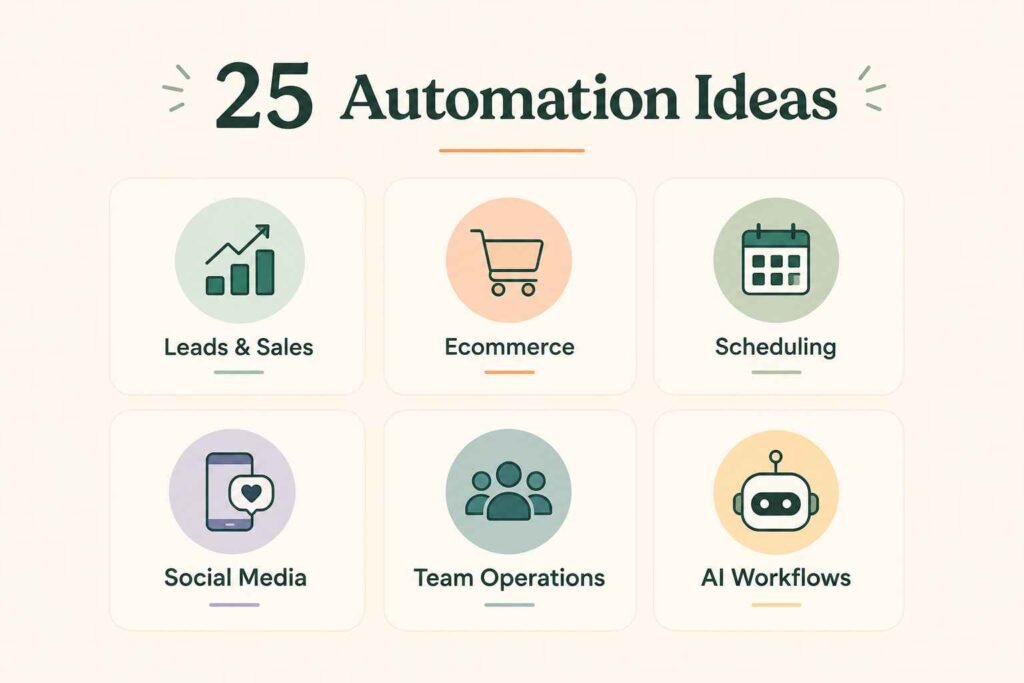
Here they are, grouped into six practical categories. Each entry shows the problem, the automation, the apps you’d connect, who it fits best, and how difficult it is for a beginner to build.
Leads & Sales
1. Contact Form → Google Sheets → Email Notification
Problem: You miss form submissions because they land in an inbox you don’t check often.
Automation: Every form submission is logged in a spreadsheet and triggers an instant email or Slack alert.
Website Form
↓
Make.com
↓
Google Sheets
↓
Email Notification
Website, Make.com, Google Sheets, Gmail — Beginner — Quick setup
2. New Lead → Automatic Welcome Email
Problem: New leads go cold because the first response takes hours or days.
Automation: The moment someone fills out a form, they receive a personalized welcome email within seconds.
Typeform, MailerLite — Beginner — Quick setup
3. Facebook Lead Ads → CRM
Problem: Ad leads sit unread in Meta’s ad manager instead of reaching your sales pipeline.
Automation: Every new Facebook lead is pushed straight into your CRM with all their details attached.
Facebook, HubSpot — Intermediate — Moderate setup
4. Abandoned Cart Reminder
Problem: Shoppers add items to their cart, then leave without buying — and you never follow up.
Automation: A reminder email goes out automatically a few hours after a cart is abandoned.
Shopify, MailerLite — Intermediate — Moderate setup
5. Customer Review Request After Purchase
Problem: You know reviews help sales, but you forget to ask for them.
Automation: A few days after a purchase, a review-request email is sent automatically.
Shopify, Gmail — Beginner — Quick setup
Orders & Ecommerce
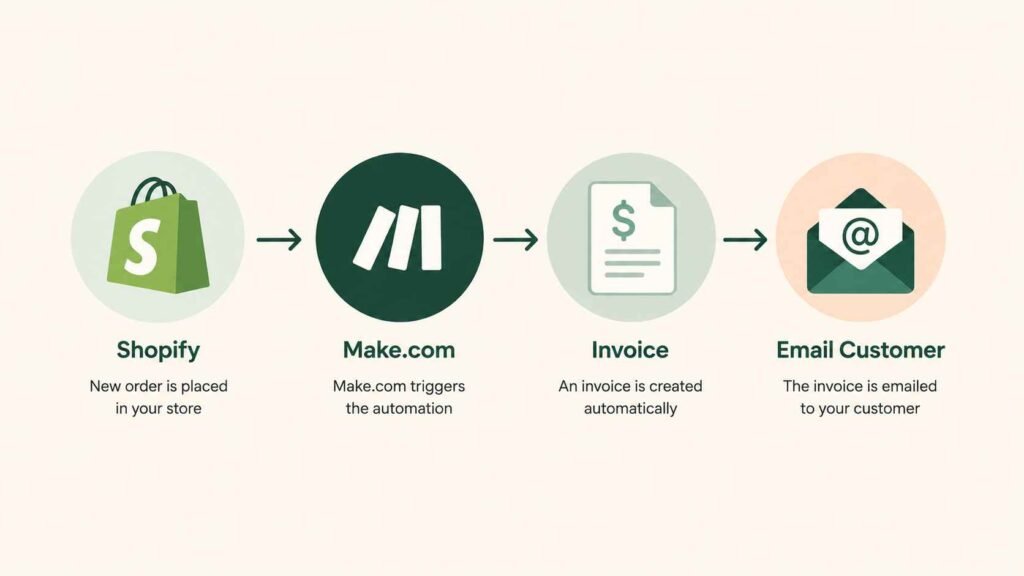
6. Shopify Order → Invoice Creation
Problem: Creating invoices manually for every order eats up your evenings.
Automation: A new order automatically generates a formatted invoice and emails it to the customer.
Shopify Order
↓
Make.com
↓
Invoice (Google Docs)
↓
Customer Email
Shopify, Google Docs, Gmail — Intermediate — Moderate setup
7. Customer Pays Invoice → Thank-You Email
Problem: Payment confirmations feel cold or get skipped entirely.
Automation: The moment a payment clears, a warm thank-you email goes out automatically.
Stripe, Gmail — Beginner — Quick setup
8. WooCommerce Order → Inventory Update
Problem: Stock counts drift out of sync between your store and your spreadsheet.
Automation: Every sale automatically deducts stock from your inventory sheet in real time.
WooCommerce, Google Sheets — Intermediate — Moderate setup
9. Online Purchase → Accounting Software
Problem: Manually entering sales into your bookkeeping tool is tedious and error-prone.
Automation: New sales sync directly into QuickBooks or Xero, no data entry required.
QuickBooks, Xero — Intermediate — Moderate setup
Scheduling & Customer Support
10. Appointment Booking → Google Calendar
Problem: Double-bookings happen when appointments aren’t synced to your calendar instantly.
Automation: Every booking is added to your calendar the second it’s confirmed.
Calendly Booking
↓
Make.com
↓
Google Calendar Event
Calendly, Google Calendar — Beginner — Quick setup
11. Booking → SMS Reminder
Problem: No-shows cost you time and money.
Automation: An SMS reminder is sent automatically 24 hours before the appointment.
Calendly, Twilio — Intermediate — Moderate setup
12. Customer Support Email → Trello Task
Problem: Support requests get lost in a crowded inbox.
Automation: Every support email automatically creates a tracked task on your team board.
Gmail, Trello — Beginner — Quick setup
Content & Social Media
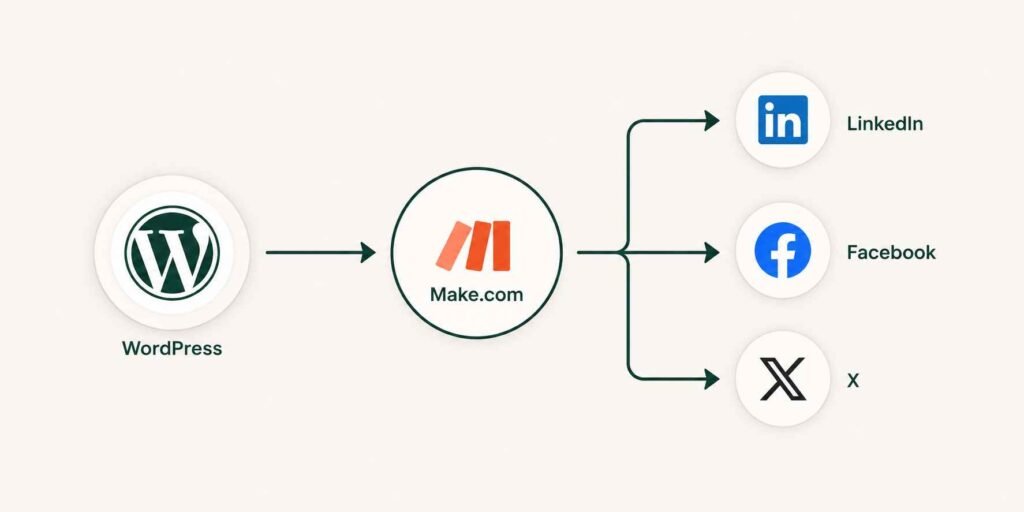
13. Blog Published → Social Media Posts
Problem: You write a blog post, then forget to promote it anywhere.
Automation: Publishing a new post automatically drafts posts for LinkedIn, Facebook, and X.
New Blog Post (WordPress)
↓
Make.com
↓
LinkedIn + Facebook + X Drafts
WordPress, LinkedIn, Facebook, X — Intermediate — Moderate setup
14. New YouTube Video → Social Media Announcement
Problem: New videos don’t get the extra push they need across your other channels.
Automation: A new upload triggers an automatic announcement post on your other platforms.
YouTube, Facebook, LinkedIn — Intermediate — Moderate setup
15. RSS Feed → LinkedIn Post Draft
Problem: Staying consistent on LinkedIn takes more time than you have.
Automation: New articles from an RSS feed are turned into draft LinkedIn posts automatically.
RSS, LinkedIn — Intermediate — Moderate setup
Team & Internal Operations
16. Google Forms Responses → Slack Notification
Problem: Internal form submissions get missed because no one checks the response sheet.
Automation: Every new submission pings the right Slack channel instantly.
Google Forms, Slack — Beginner — Quick setup
17. Employee Leave Form → HR Spreadsheet
Problem: Leave requests get tracked inconsistently across email, chat, and paper.
Automation: Every leave request is logged automatically into a shared HR tracker.
Google Forms, Google Sheets — Beginner — Quick setup
18. Resume Submission → Airtable
Problem: Hiring gets messy when resumes are scattered across email threads.
Automation: Every application is logged in one organized Airtable base automatically.
Google Forms, Airtable — Beginner — Quick setup
19. Gmail Attachment → Google Drive
Problem: Important files get buried in old email threads.
Automation: Attachments are automatically saved to the right Google Drive folder.
Gmail Attachment
↓
Make.com
↓
Google Drive Folder
Gmail, Google Drive — Beginner — Quick setup
Reporting & AI-Powered Workflows
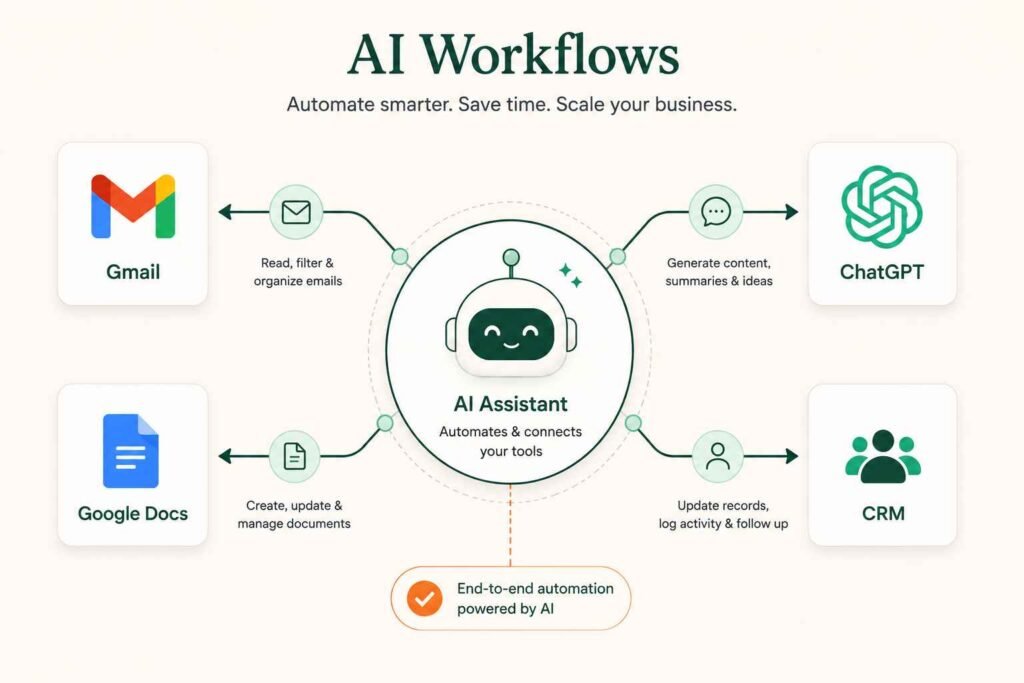
20. Daily Sales Report
Problem: You want a clear daily snapshot of sales but don’t have time to pull it together.
Automation: A summary report is compiled and emailed to you automatically every morning.
Shopify, Google Sheets, Gmail — Intermediate — Moderate setup
21. Weekly Business Dashboard
Problem: Your sales, traffic, and payment data all live in different tools.
Automation: Data from Shopify, Stripe, and Google Analytics is pulled into one weekly dashboard automatically.
Shopify, Stripe, Google Analytics — Intermediate — Moderate setup
22. AI Email Reply Draft
Problem: Writing thoughtful replies to routine emails takes longer than it should.
Automation: Make.com drafts an AI-generated reply for you to review and send.
New Gmail Message
↓
Make.com
↓
OpenAI (Draft Reply)
↓
Gmail Draft
Gmail, OpenAI — Intermediate — Moderate setup
23. AI Blog Summary Generator
Problem: Long posts need a short summary for newsletters or social captions, and writing it takes extra time.
Automation: A new blog post automatically generates a short AI summary for reuse.
WordPress, OpenAI — Intermediate — Moderate setup
24. AI Product Description Generator
Problem: Writing unique descriptions for dozens of products is slow, repetitive work.
Automation: A new product listing triggers an AI-drafted description ready for your review.
Shopify, OpenAI — Intermediate — Moderate setup
25. AI Meeting Notes → Action Items
Problem: Important meeting decisions get forgotten because no one writes them down properly.
Automation: A recorded meeting is transcribed and turned into a clear action-item list automatically.
Zoom, Google Docs, ChatGPT — Intermediate — Moderate setup
If any of these AI-powered ideas caught your eye, that’s exactly the direction automation is heading in 2026 — and it’s a big part of why I wrote How to Become an AI Automation Specialist, for anyone who wants to go deeper than just using these workflows for their own business.
Bonus: 5 More AI-Only Automation Ideas
AI modules are the fastest-growing part of Make.com’s ecosystem, so here are five more worth knowing about beyond the core 25.
Bonus A. AI Proposal Generator
Problem: Writing a custom proposal for every prospect takes hours you don’t have.
Automation: Client details from a form or CRM trigger an AI-drafted proposal you can review and send.
CRM, OpenAI, Google Docs — Intermediate — Moderate setup
Bonus B. AI Customer Support Summary
Problem: Long support threads are hard to skim when you’re catching up.
Automation: Make.com summarizes a long email or chat thread into a few bullet points automatically.
Gmail, OpenAI — Intermediate — Moderate setup
Bonus C. AI Invoice Explainer
Problem: Customers sometimes ask what a line item on their invoice means, and answering takes time.
Automation: AI drafts a plain-English explanation of an invoice’s charges for your customer.
Stripe, OpenAI — Intermediate — Moderate setup
Bonus D. AI Lead Qualification
Problem: Not every lead is worth chasing, but sorting them manually is slow.
Automation: AI scores incoming leads against criteria you set, flagging the strongest ones first.
CRM, OpenAI — Intermediate — Moderate setup
Bonus E. AI Social Media Caption Generator
Problem: Coming up with a fresh caption for every post is a small but constant creative tax.
Automation: AI drafts a caption based on your image or post topic, ready for a quick edit.
OpenAI, Instagram — Beginner — Quick setup
Not Sure Where to Start? Try These Five First
- Contact Form → Google Sheets (idea #1) — the simplest possible starting point.
- New Lead → Welcome Email (idea #2) — immediate, visible value for very little effort.
- Gmail Attachment → Google Drive (idea #19) — a “set it and forget it” file-organizing win.
- Appointment Booking → Google Calendar (idea #10) — great if no-shows or double-bookings are a pain point.
Blog Published → Social Media Posts (idea #13) — a natural next step once you’re comfortable with the basics.
Start Building Today
You don’t need to master all 25 ideas. Pick one beginner-friendly workflow, create a free Make.com account, and build it step by step.
Common Mistakes to Avoid
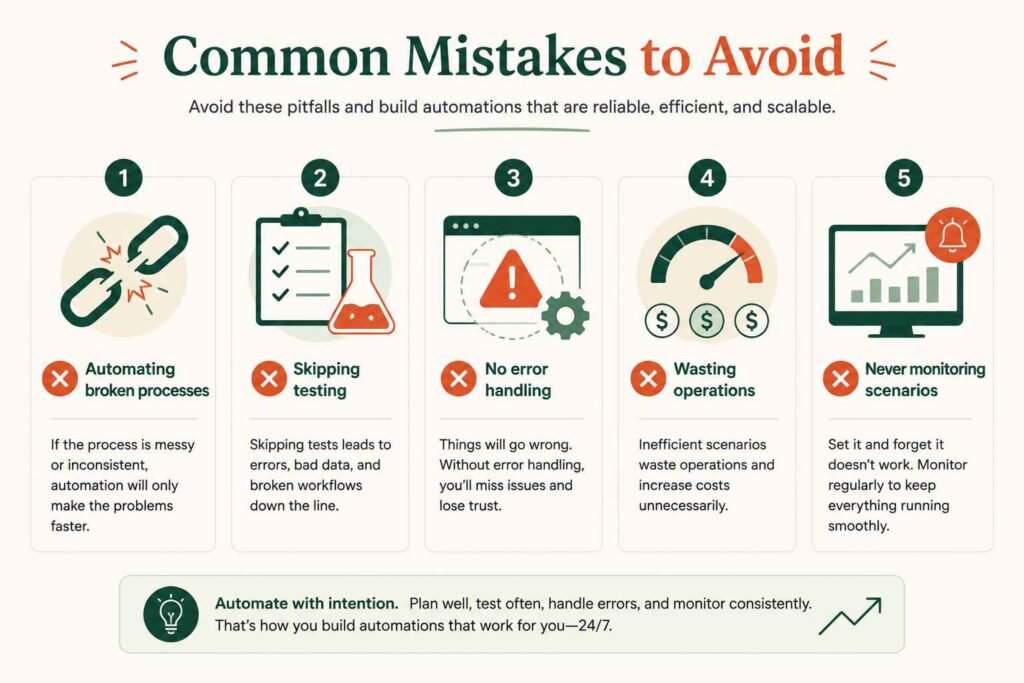
The most common automation mistakes are automating a process that’s already broken, skipping testing before going live, ignoring error handling, running too many unnecessary operations, and forgetting to check in on scenarios once they’re active.
Automating a broken process. If a workflow is inefficient or confusing when done manually, automating it just makes the mess run faster. Fix the process first.
Not testing before going live. Always use “Run once” to check a scenario on real data before activating it — this is the single easiest way to avoid costly mistakes.
Ignoring error handling. Without error handlers, one failed step can silently stop your whole scenario. Add basic error routes for anything customer-facing.
Running too many unnecessary operations. Polling triggers use operations even when nothing new happens. Use webhook-based triggers where possible to stay efficient.
Forgetting to monitor active scenarios. Automations can break silently when a connected app changes its API. Check in periodically, especially after the first few weeks.
Which Industries Benefit Most From These Automations?
Almost any small business with repetitive customer or admin tasks can benefit, but service-based businesses that rely on appointments, follow-ups, and lead capture — like clinics, coaches, and agencies — tend to see the fastest, most visible time savings from Make.com automation.
| Business Type | Example Automation |
|---|---|
| Real Estate | Lead follow-up (idea #2) |
| Ecommerce | Order processing (idea #6) |
| Restaurants | Reservation reminders (idea #11) |
| Coaches | Client onboarding (ideas #1, #2) |
| Clinics | Appointment reminders (idea #11) |
| Churches | Visitor follow-up (idea #2) |
| Schools | Student registration (idea #18) |
| Agencies | Client onboarding (idea #1) |
| Freelancers | Invoice automation (idea #6) |
| Accountants | Expense reports (idea #9) |
Why Small Businesses Are Switching to Make.com
Small businesses use Make.com because it saves hours every week, cuts down on human error, and scales without hiring extra staff — all at a price that’s realistic for a solo operator or small team, not just large companies with automation budgets.
- Saves hours every week that would otherwise go into copy-pasting and data entry.
- Reduces human errors — a workflow doesn’t forget a step or mistype an email address.
- Improves customer experience through faster replies, reminders, and follow-ups.
- Scales without hiring — one automation can handle 10 leads or 10,000.
- Affordable for small businesses, with a usable free plan and low-cost paid tiers.
- Connects thousands of apps you’re probably already using.
| Manual Task | With Make.com |
|---|---|
| Copying leads into a spreadsheet | Automatic |
| Sending invoices one by one | Automatic |
| Scheduling appointment reminders | Automatic |
| Saving email attachments manually | Automatic |
| Pulling together weekly reports | Automatic |
If you want the full breakdown of what it costs and how it compares to alternatives, I covered that in detail in Zapier vs Make.com vs n8n.
Want to follow along?
Every automation in this guide can be built inside Make.com’s free plan. Create an account and experiment while reading.
Frequently Asked Questions
Is Make.com good for small businesses?
Yes. Its visual builder, generous free plan, and lower per-operation cost compared to Zapier make it well-suited to small businesses that need real automation power without an enterprise budget.
Do I need coding skills?
No. Make.com is built as a no-code, drag-and-drop platform. You can build every automation on this list without writing a single line of code.
How much does Make.com cost?
There’s a free plan with 1,000 operations a month, and paid plans start around $10–11/month for higher usage. Pricing is based on how many operations your scenarios use, not the number of workflows you build.
Can I use AI with Make.com?
Yes. Make.com has native modules for tools like ChatGPT and Claude, so you can build AI-powered workflows like the ones in ideas #22–25 without any separate integration work.
What apps work with Make.com?
Make.com connects with over 3,000 apps, including Google Workspace, Shopify, Slack, HubSpot, Airtable, Stripe, and most major business tools you’re already using.
Is Make.com better than Zapier?
It depends on your priorities. Make.com is generally more powerful and cheaper at scale, while Zapier is slightly easier for absolute first-timers. See the full comparison for details.
Can Make.com automate my website?
Yes, as long as your website can send data through a form, webhook, or connected app like WordPress or Shopify, Make.com can trigger automations from it.
Is the free plan enough?
For testing one or two simple automations, yes. Most small businesses running several active workflows will outgrow the free plan’s 1,000 monthly operations fairly quickly.
Want to Build These Automations Step by Step?
If you want to move from reading automation ideas to actually building them, AutomateFlow is another useful resource to explore.
It provides free, step-by-step guides for practical Make.com workflows, including email-to-Telegram alerts, RSS-to-Telegram notifications, instant lead-response webhooks, and missed-call text-backs.
Some guides also include importable Make.com blueprints, which can make it easier for beginners to follow along and start experimenting with real automations.
Getting Started
You don’t need all 25 of these running by next week. Even one simple automation — the contact-form-to-notification workflow, or a basic welcome email — can save you hours over a month. Start there, get comfortable, then expand.
And if this is part of a bigger goal for you — building real income around AI and automation skills, even starting from scratch — that’s exactly what I write about over on the complete guide to earning money with AI as a beginner. Automation is one of the most practical paths into that world.
Want more beginner-friendly automation ideas?
I send one practical AI or automation tip a week — no fluff, no hype, just what actually works.
Join Free →
Founder, Future Work Navigator — writing for beginners learning AI, automation, and digital income, one honest guide at a time.